Catalogs
A catalog is the top-level container for your product offers. It lets you group products into a named, versioned collection and control which countries and locales the collection is active in. Think of it as a price-list or assortment container in a PIM: everything published to a storefront or integration lives inside one catalog.
When to use
Use separate catalogs when you need to:
- Separate product ranges by market (for example, a catalog per country or sales channel).
- Keep a staging set of products isolated from the live set.
- Organise large product libraries by brand or business unit.
A single catalog works fine for most setups. You can link multiple countries to one catalog, and add country assignments later without recreating any products.
Create a catalog
- In the left navigation, go to Catalogs.
- Click Create in the top-right corner of the catalog list.
- Fill in the General section (see fields below).
- Click Save in the right-hand sidebar.
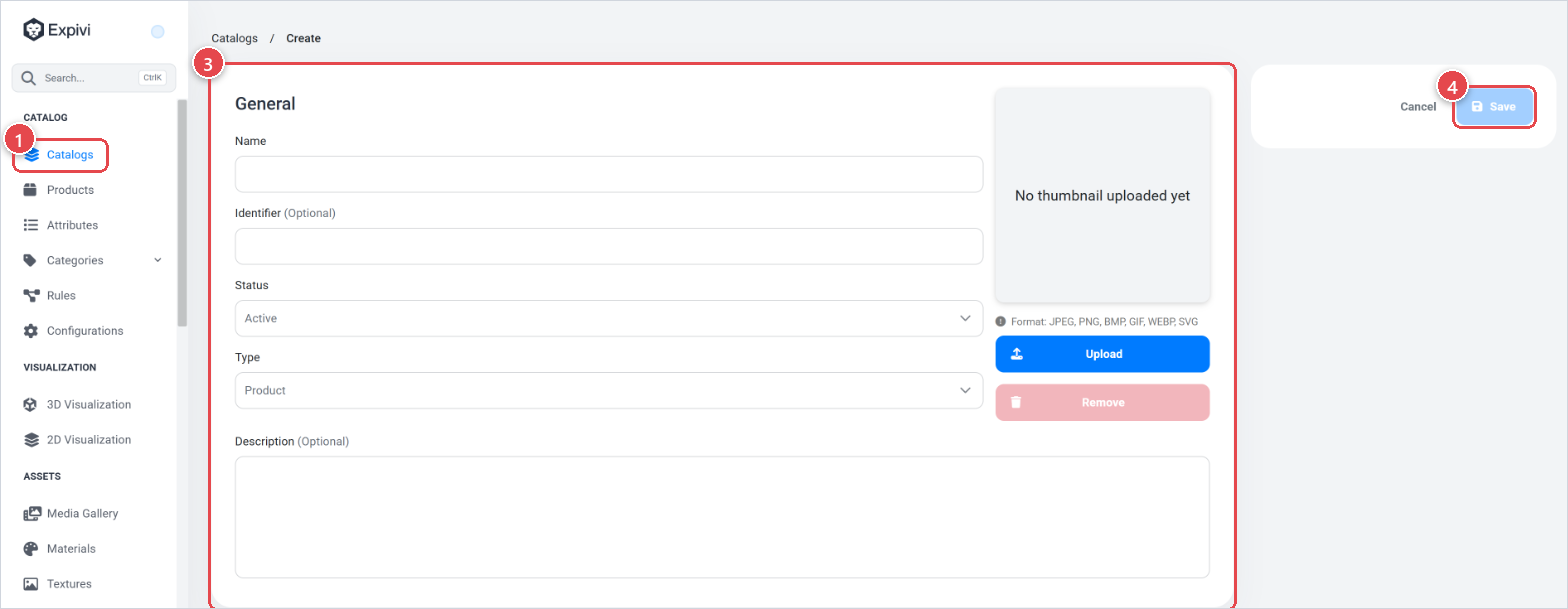
After saving, the catalog opens in edit mode where you can also assign countries in the Global Properties section.
Fields
General
| Field | Required | What it does |
|---|---|---|
| Name | Yes | Display name of the catalog. Supports multiple locales. Use the locale switcher next to the input to enter translations (when additional locale is present). |
| Identifier | No (create) / Yes (edit) | A unique, space-free slug (max 48 characters) used by integrations to reference this catalog. Auto-generated if left blank. |
| Status | Yes | Active makes the catalog available to the storefront and API clients. Inactive hides it. |
| Type | Yes | Always Product. This field is read-only. |
| Description | No | Optional description. Supports multiple locales. |
| Thumbnail | No | A square image shown in the catalog list. Upload or crop from the media gallery. |
Global Properties
| Field | Required | What it does |
|---|---|---|
| Countries | No | Restricts which countries this catalog is served to. Leave empty to make it available everywhere. |
Best practices
- Set the Identifier to a short, recognisable slug such as
nl-shoporus-b2bso integrations remain readable. - Set Status to Inactive while you are building the catalog. Switch to Active only when the products inside it are ready.
- Assign Countries before you go live so that geo-restricted pricing rules can reference the catalog.