Configurations
A configuration is a saved starting point for a product configurator. Where a product offer defines all the attributes and rules that a configurator can present, a configuration records a specific set of choices made in that configurator and stores them as a snapshot. When the configurator is opened with that configuration, it starts from those saved choices rather than from the default state.
Use configurations to pre-load a common option set (for example, a popular colour and material combination), to create named presets for sales teams, or to capture a customer's custom layout before order confirmation.
Create a configuration
- In the left navigation, go to Catalog and then Configurations.
- Click Create in the top-right corner.
- Fill in the General section (see fields below).
- Click Save in the right-hand sidebar.
After saving, the configuration opens in edit mode. From there you can configure the saved snapshot using the Configure button in the sidebar, and manage any scoped rules attached to this configuration.
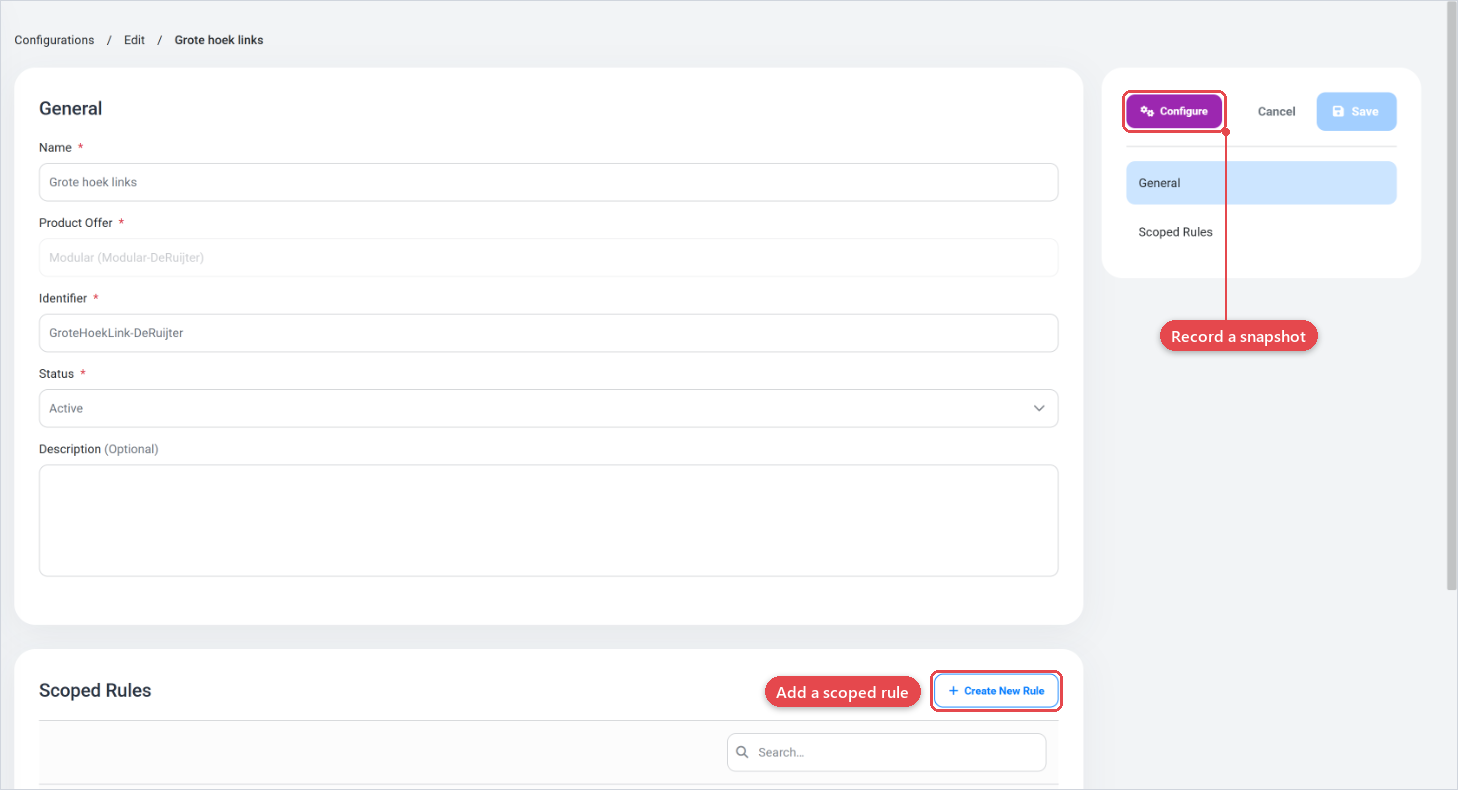
Fields
General
| Field | Required | What it does |
|---|---|---|
| Name | Yes | A logical name/label for the configuration (max 255 characters). |
| Product Offer | Yes | The product offer this configuration belongs to. The selector searches all available product offers. |
| Identifier | No (create) / Yes (edit) | A unique, space-free slug (max 48 characters) scoped to the selected product offer. Auto-generated if left blank. |
| Status | Yes | Active makes the configuration available via the API. Inactive hides it. |
| Description | No | Optional free-text description (max 1000 characters). |
Scoped Rules (edit only)
The Scoped Rules section lists rules that apply only within this configuration. These rules behave exactly like other product rules (Rules in v2) but are evaluated on top of the product offer's global rules when this configuration is loaded.
Click Create New Rule in the section header to add a scoped rule. The rule editor opens with the scope pre-set to this configuration.
Recording a configuration snapshot
After saving the configuration, click the Configure button in the right-hand sidebar. This opens an interactive configurator preview loaded with the chosen product offer. Make your selections in the configurator, then click Save or Save and Close.
Each save records the current state of the configurator as a snapshot linked to this configuration. The next time the configuration is opened (in the preview, in a storefront embed, or via the API), the configurator starts from that saved snapshot.
A saved snapshot never changes. Every save creates a new snapshot, and the configuration then points to that one. You can't go back to an earlier snapshot, so check the configuration in the preview before you save.
- Give configurations descriptive names that reflect the preset they represent (for example, "Oak veneer with anthracite frame").
- Use Inactive status while you are building or refining the preset. Switch to Active only when the snapshot is ready for use.
- Use Scoped Rules sparingly. Prefer global product offer rules when a rule should apply to all sessions, not just this preset.