Rule builder
The rule builder is the step-by-step alternative to the decision table. You build each ruleset individually using a guided sidebar. It suits simpler rules or situations where you want to read a ruleset as plain sentences rather than scan a grid.
How a ruleset is structured
Every ruleset has two parts:
- When (Conditions) — one or more conditions that must be satisfied before the rule fires.
- Do (Actions) — one or more actions that fire when all conditions are met.
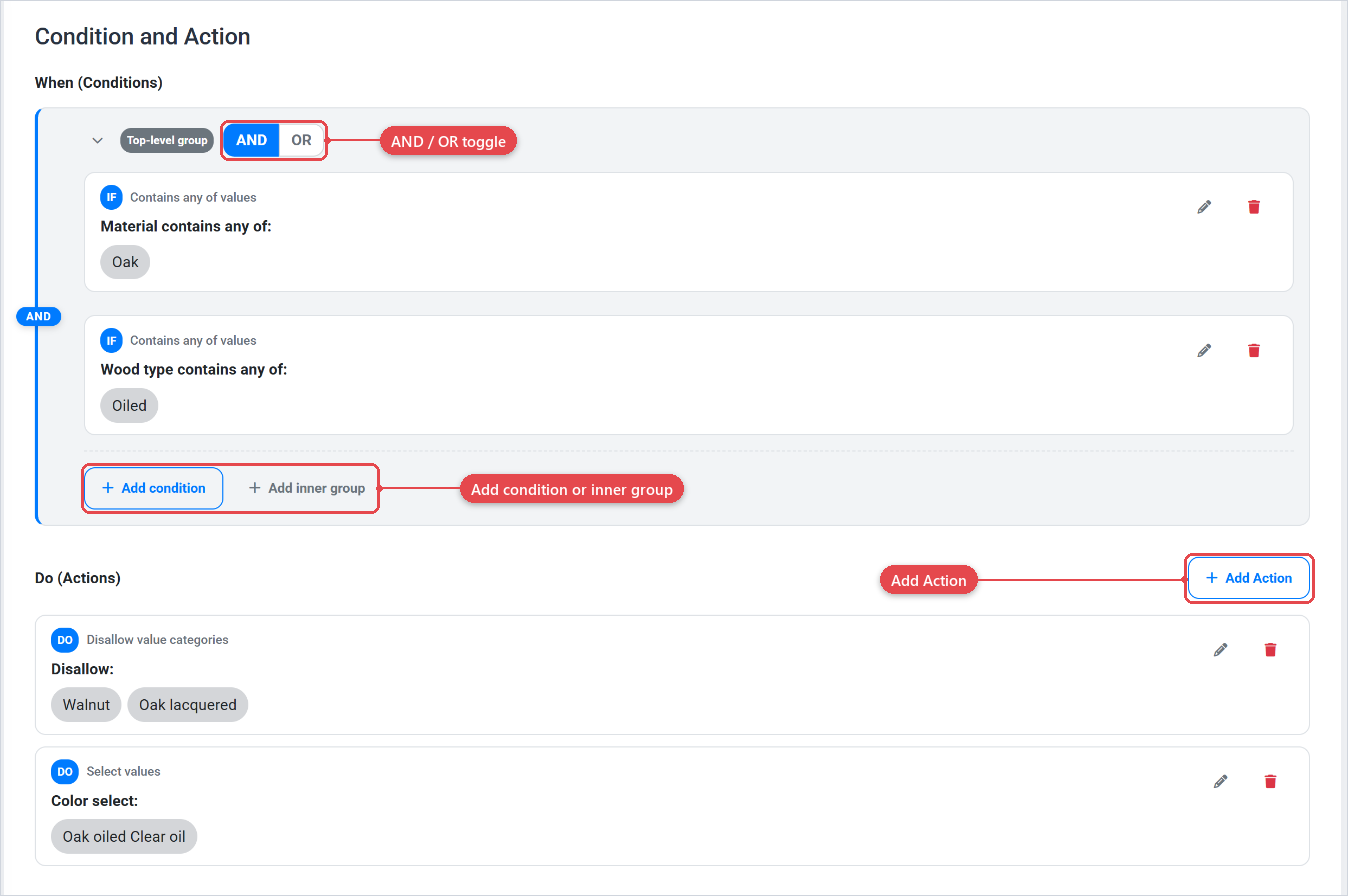
Conditions and the AND / OR toggle
Conditions inside a group are combined with either AND (every condition in the group must be true) or OR (at least one must be true). You switch between AND and OR using the toggle in the group header.
You can also add inner groups inside a condition group, each with their own AND / OR toggle. This lets you express logic like "A and (B or C)":
- Root group (AND)
- Condition A
- Inner group (OR)
- Condition B
- Condition C
You can nest groups up to 5 levels deep. At that depth, the Add inner group button is disabled and a note appears.
Each condition card shows a prefix label. IF in normal state, or IF NOT in red when the Negate (NOT) toggle is on.
Actions
Actions are listed in order below the conditions. Each action card shows a DO prefix. Actions do not have a negate option.
Editing an expression
Clicking Add condition or Add Action opens the expression sidebar on the right. The sidebar has:
- Expression dropdown — select the condition or action type.
- Negate (NOT) toggle (conditions only) — inverts the condition.
- Editor fields — inputs specific to the chosen expression type, for example an attribute picker or a value list.
- Apply, Clear, and Cancel buttons at the bottom.
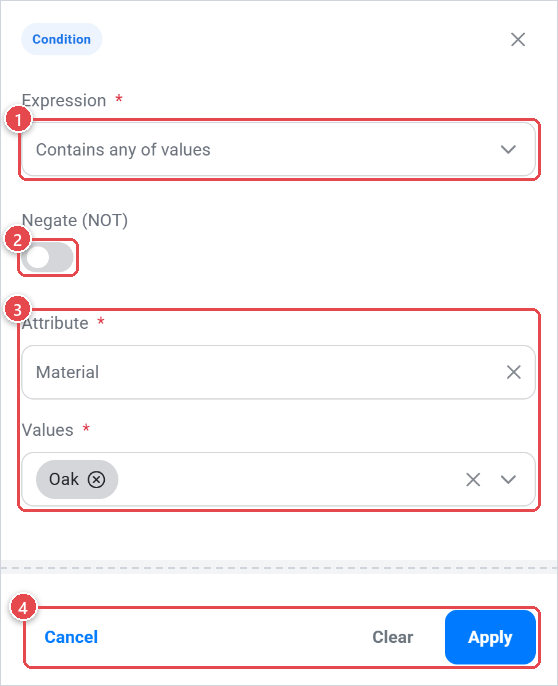
After you click Apply, the expression appears as a card in the ruleset. Click a card to open the sidebar and edit it; click the delete icon on a card to remove it.
Rulesets list
A rule can contain multiple rulesets. They are listed in a table with their Name, Type, Priority, Identifier, and Active status. Lower priority numbers fire first. You can drag rows to reorder them, and change the priority number inline.
Worked example
Suppose you want to show a warning when a shopper selects a particular colour that is not compatible with a specific material finish.
The ruleset would look like this:
- When (Conditions) — AND group
- Contains any of values: Colour attribute › "Matte Black"
- Contains any of values: Finish attribute › "Glossy"
- Do (Actions)
- Show warning: "Matte Black is not available with Glossy finish. Please choose a different finish." (pinned to the Finish attribute)
Because both conditions use AND, the warning appears only when both values are selected simultaneously. If you switched the group to OR, the warning would appear whenever either condition was true independently.
Keep each ruleset focused on a single scenario. If you have many combinations, consider switching to the decision table type so you can see all cases at a glance.