Attributes
Attributes are the building blocks of a product configurator. Each attribute represents one dimension of choice such as colour, material, size, or an add-on product and carries a set of values that the end customer can select. Think of an attribute as a product option, much like a variant in a standard webshop.
Where attributes are used
Attributes appear throughout Expivi as a shared catalogue that every product can draw from:
| Area | How attributes are used |
|---|---|
| Products | Assigned to a product to define what can be configured. The product layout controls which attributes are visible and in which order (Layout). |
| Rules | Conditions and outcomes in rules reference attribute values to show/hide options, set defaults, or change prices (Rules in v2). |
| Pricing | Price rules and modifiers are linked to attribute values to calculate configurator pricing (Prices). |
| 3D visualization | Attributes drive material swaps, model variants, and visibility changes in the 3D scene (3D visualization attributes). |
| Material mapping | The material mapper links attribute values to 3D materials (Material mapping). |
| BOM (bill of materials) | BOM parts and components can be conditional on attribute values (Parts). |
| Categories | Attributes and their values can be grouped into categories for filtering and scoping (Attribute categories). |
Attribute types at a glance
| Type | Summary | Value type(s) |
|---|---|---|
| Static | A fixed value that doesn't change; used for read-only data or a single pre-set option. | String, Number |
| Configurable | A list of selectable values the customer picks from, this is the most common type. | List, Number, Boolean, String |
| Bundle | Each value points to another product offer, turning the option into an add-on or a variant product. | Product |
| Constrained | Inherits its values from a parent configurable attribute and filters them by category. | Inherited |
See the per-type pages for settings and best practices: Static attributes · Configurable attributes · Bundle attributes · Constrained attributes
The attribute list
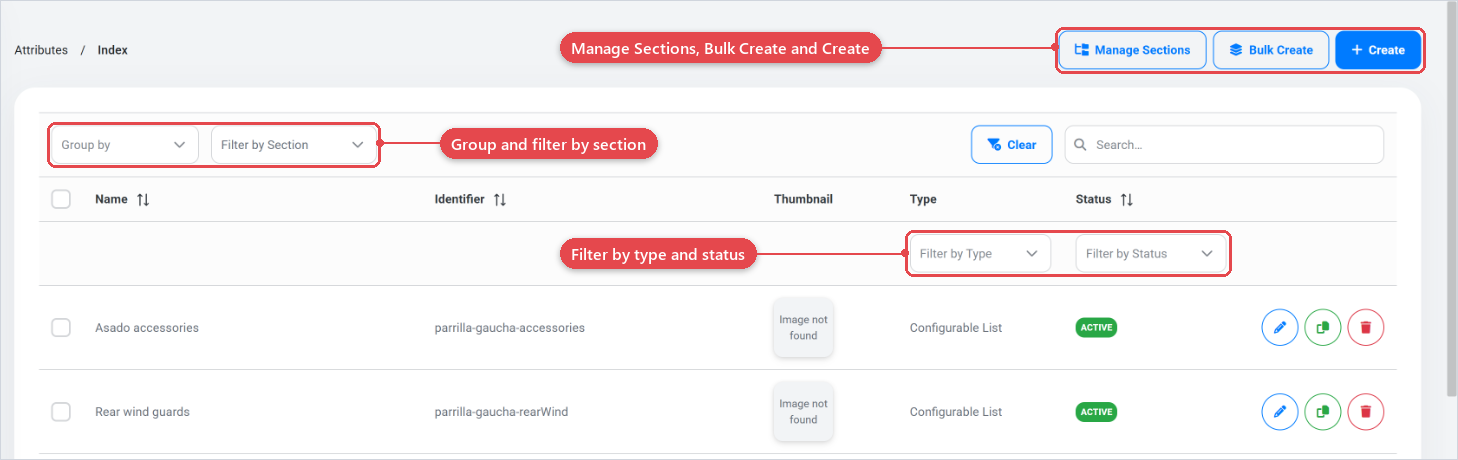
Navigate to Catalog › Attributes to see all attributes in the system. The list shows each attribute's Name, Identifier, Thumbnail, Type, and Status.
Group by section
Select Section from the Group by dropdown to reorganise the list by attribute section. Attributes that belong to no section appear under "Other". Clearing the dropdown returns to the flat list. Sections are a way of labelling related attributes (for example "Colour options" or "Structural options") without affecting which products they are assigned to.
Filter by type and status
The Type column header contains a Filter by Type dropdown. Use it to show only one attribute type at a time (Static, Configurable, Bundle, Constrained, or Print). Similarly, the Status column header contains a Filter by Status dropdown to show only Active or Inactive attributes.
Filter by section
Use the Filter by Section multi-selector in the toolbar to narrow the list to one or more attribute sections. Combine this filter with the Type filter to find a specific subset quickly.
Search
The search box in the toolbar filters the list by name or identifier as you type.
Manage Sections
Sections are labels you can attach to attributes so you can group and filter them in the list. They have no effect on product assignment or on how values are presented to the customer.
Click Manage Sections to open the sections panel. From there you can:
- Enter a name in the New section name field and click Add to create a section.
- Click the pencil icon next to an existing section to rename it.
- Click the trash icon to delete a section.
Deleting a section does not delete the attributes assigned to it; it only removes the label.
Bulk Create vs Create
| Create | Bulk Create | |
|---|---|---|
| Rows | One attribute | Up to a configurable maximum per submit |
| Type-specific settings | Full settings panel with all tabs | Only Name, Identifier, Type, Value Type, Status and Attribute section |
| Best for | Setting up a single, fully configured attribute | Scaffolding many attributes at once and editing details later |
- Click Create to open the single-attribute form. See Create attribute.
- Click Bulk Create to open the bulk table. See Bulk create.
Use Bulk Create to lay out your attribute catalogue quickly, then go back and edit each attribute individually to add values, thumbnails, and detailed settings.