3D visualization attributes
The Attributes tab holds the all configurable optoins that influence the 3D viewer. Because of this these attributes will never be customer facing. They only choose from your catalog attributes (Attributes). The visualization mapping (Visualization mapping) translates each catalog attribute value into the matching 3D option or material group behind the scenes.
So the attributes here are purely technical building blocks for the 3D scene, not the choices a customer makes. Keep them close to the structure of the model, and give them names your team can recognise when mapping.
If you have created attributes in your hierarchy, these will be created here already after your import. This is also the only way to alter the 3D model using attributes. If you need an attribute for any other purpose (offsets, camera switches, rules) you can create them in this section.
Adding an attribute
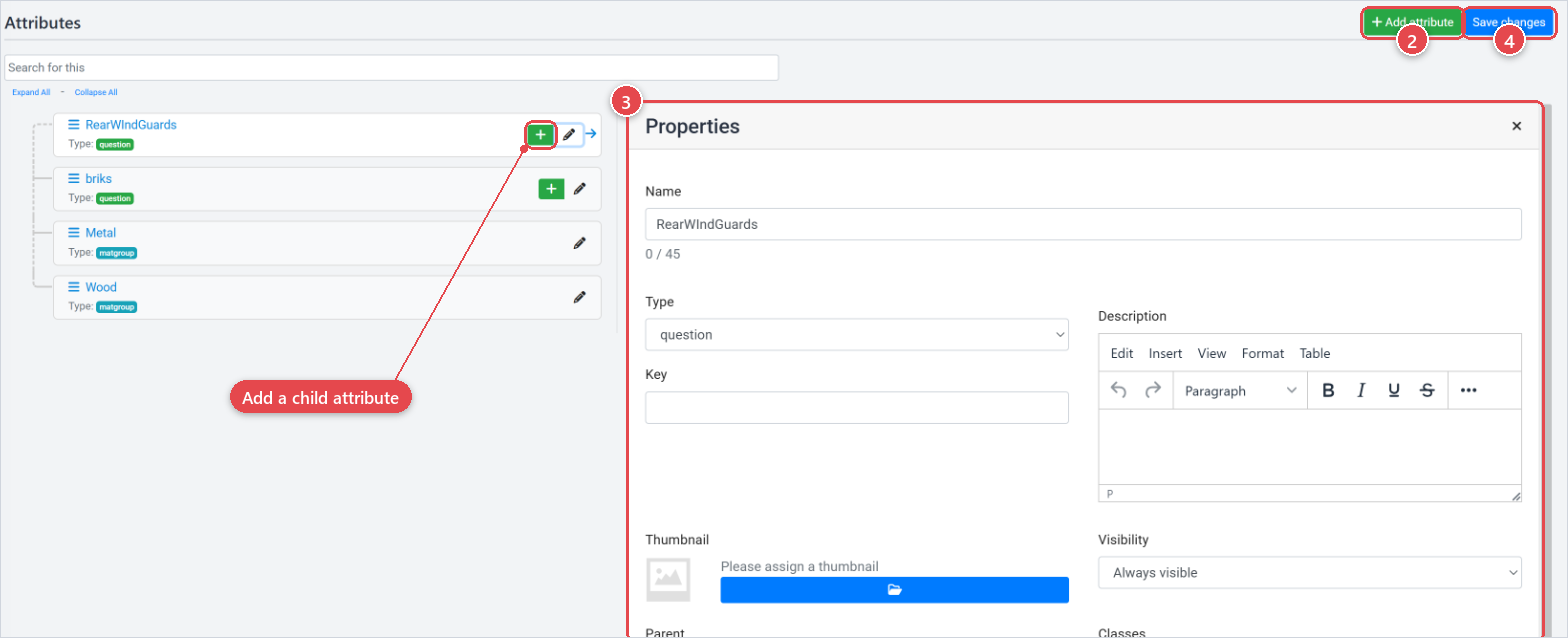
- Open the product in Visualization › 3D Visualization and select the Attributes tab.
- Click Add attribute.
- Fill in the attribute properties in the edit panel that opens on the right.
- Click Save changes to write all pending changes to the visualization.
Editing an attribute
Click any attribute row in the tree on the left to open its properties in the edit panel. Make your changes and click Save changes.
You can search the attribute tree using the search bar at the top of the list. Use the Expand All and Collapse All links to control how much of the hierarchy is visible at once.
To add a child attribute under an existing one, use the + control shown next to the parent attribute in the tree.
Attribute properties
The exact fields available on an attribute depend on its type and where it sits in the hierarchy. Common fields include:
| Field | What it does |
|---|---|
| Name | The name of the option. You see it in the backoffice when you map catalog attribute values to it. |
| Slug | An optional machine-readable identifier used internally and by rules. This is not required. |
| Description | An optional description for backoffice reference. |
3D visualization attributes are separate from catalog attributes (Attributes). Customers choose catalog attribute values, and the visualization mapping links each value to a 3D option here.
This is the same screen as in v1, now as its own tab. In v1, these options were what the customer chose from. In v2, customers choose catalog attributes, and these options are only driven through the visualization mapping.