Showcase
The Showcase tab opens the scene editor, an interactive 3D environment where you arrange everything that surrounds the product model: background assets, lighting, and camera positions. The scene you build here is what the shopper sees when they open the configurator.
Scene editor layout
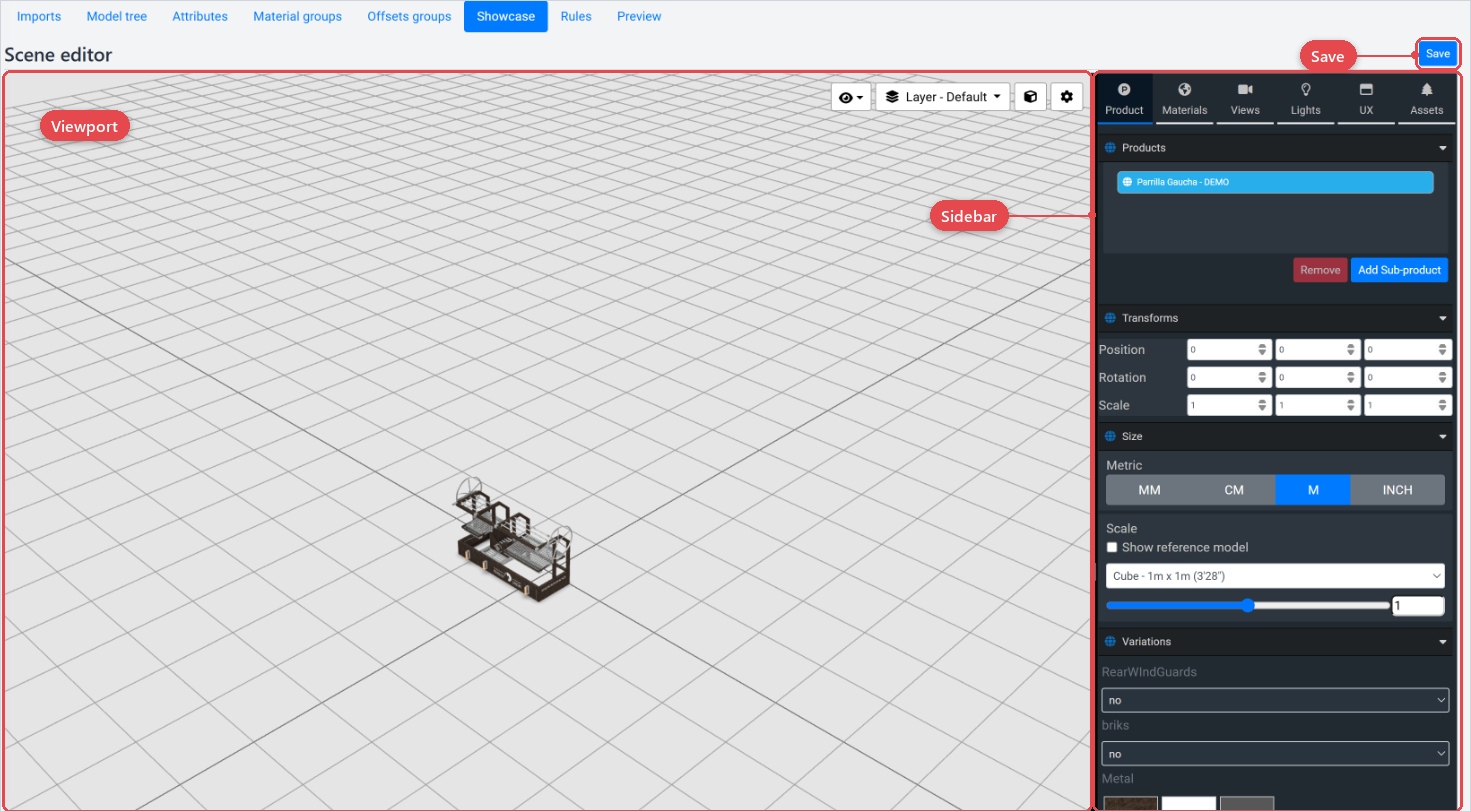
The editor has two panels side by side:
- Viewport (left): a live 3D rendering of the current scene. Changes you make in the sidebar update the viewport in real time.
- Sidebar (right): the control panel for the scene. It shows the list of assets in the scene and the properties of the selected asset.
Click Save in the header to save the current scene set up.
Working with assets
Use the sidebar's asset list to manage the objects in the scene:
- Click + Asset to add a new element. The dropdown lists the types of assets you can insert.
- Select an asset in the list to open its Asset properties section below the list.
- Use the duplicate button to copy the selected asset.
- Use the delete (bin) button to remove it.
The asset properties panel updates to show the controls relevant to the selected asset type, such as position, rotation, scale, and material settings.
Coming from v1
The Showcase works exactly as in v1. The only change is that you open it from Visualization › 3D Visualization instead of from the product.