Products
A product is the central object you configure in Expivi. It holds the attributes customers can interact with, the visual representations of those choices, the pricing logic, and the layout that controls how the configurator looks. Every product belongs to exactly one catalog and can belong to one or more categories.
How products fit together
A product in Expivi is comparable to a configurable product or a product variant group in a webshop, but it goes further: a product also carries its own 3D or 2D visualizations, a UI layout, and rules that connect attribute choices to prices or to which options are available.
Products sit inside catalogs. A catalog must exist before you can create a product. Attributes are linked to products from the shared attribute library (Attributes) and grouped into the product's layout. Categories (Categories) let you organize products for navigation in a webshop or portal.
Product types
When you create a product you choose one of two types:
| Type | When to use |
|---|---|
| Simple | A stand-alone configurable product. |
| Bundle | A product composed of other products. Use this when customers configure several items together. |
The type cannot be changed after creation.
Create a product
You must have at least one catalog before you can create a product.
- Go to Catalog › Products.
- Click Create in the top-right corner.
- Fill in the fields in the General section (see below).
- Click Save. The product is created and the full editor opens.
General fields
| Field | What it does |
|---|---|
| Name | Display name. Supports multiple locales. |
| Identifier | A unique, space-free slug (max 48 characters) used by integrations to reference this catalog. Auto-generated if left blank. |
| SKU | Stock-keeping unit code from your ERP or webshop. Optional. |
| Status | Active makes the product available to the storefront and API clients. Inactive hides it. |
| Type | Simple or Bundle. |
| Thumbnail | A small image shown in the product list. |
| Catalog | The catalog this product belongs to. Required. |
| Categories | One or more categories for navigation and filtering. Optional. |
| Description | Free-text description. Supports multiple locales. |
Product editor overview
Once a product is saved, the editor sidebar shows the following tabs in order:
| Tab | What you do there |
|---|---|
| Edit | Set general properties, link attributes, manage the gallery, and connect visualizations. |
| Layout | Build the UI layout that the configurator renders. |
| Dependencies | Define connection modules that express which products can be combined. |
| Prices | Add and configure pricing rules for the product. |
| Documents | Configure BOM parts generation and assign download-design templates. |
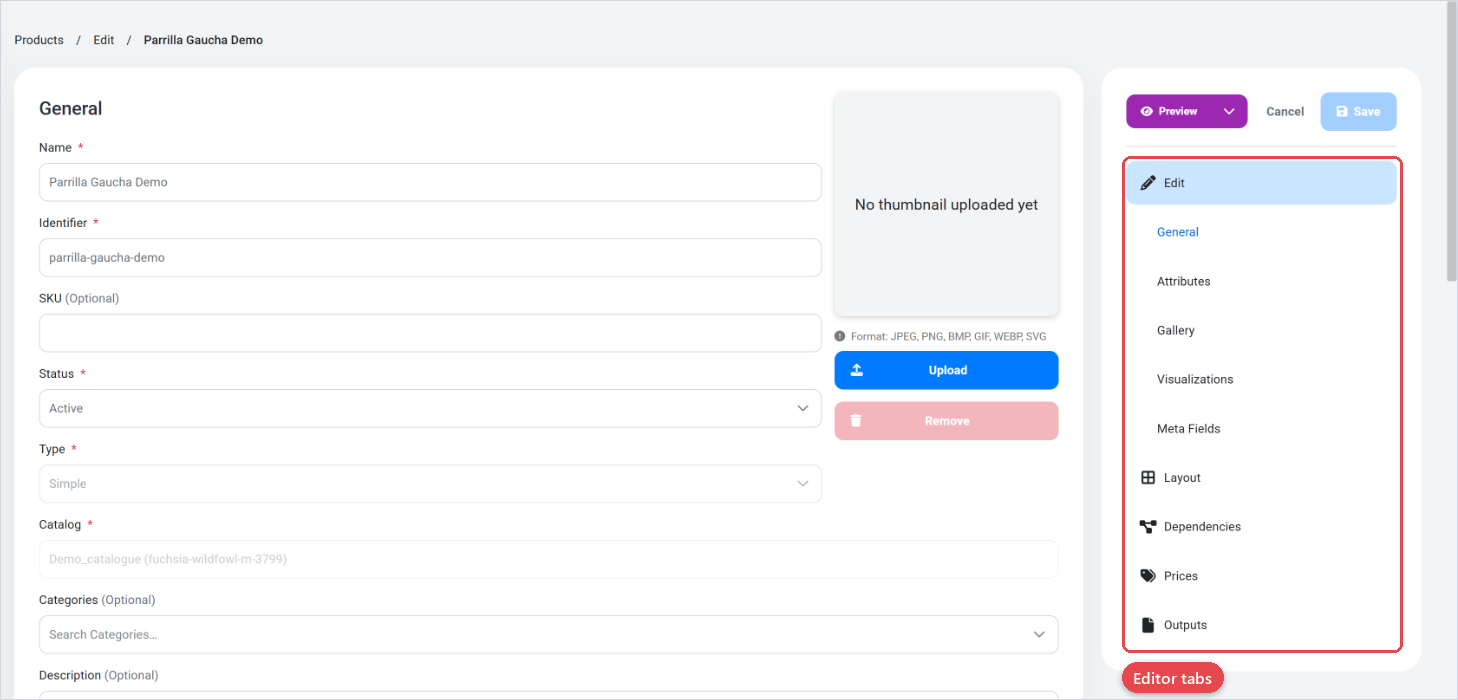
Each tab is documented on its own page. Work through them roughly in the order listed: set up Edit first (general info and attributes), then Layout (so the configurator can display the attributes), then Prices if the product has variable pricing, and finally Documents if you need generated PDFs.
Give each product a meaningful Identifier at creation time. It is used in URLs, API calls, and script references and is harder to change later.