Prices
The Prices tab lets you define how a product is priced in the configurator. A product can have multiple price entries with different types and priorities. At runtime the configurator evaluates all active prices and applies the one with the highest matching priority.
Price types
When you create a price entry you choose its Type. The type determines which extra fields appear and how the price is calculated.
| Type | How it works |
|---|---|
| Base Price | A fixed price in the product's default currency. The simplest option. |
| Attribute Based | Set either a set price or a price calculation once it matches the attribute dependencies |
| Attribute Value Pricing | Sets a price adjustment per individual attribute value. Each value in a chosen attribute can add or subtract an amount from the total. |
| Script Engine | Delegates price calculation to a custom script. Useful for complex pricing logic that cannot be expressed as a formula. |
| BOM | Adds up the prices of the BOM parts in the configuration and adds that total to the product price. The Parts must be set up first. |
Create a price entry
- Open the product and click the Prices tab.
- Click Create.
- Fill in the General section:
| Field | What it does |
|---|---|
| Name | A display label for this price entry. Supports locales. |
| Identifier | A machine-readable key. Auto-generated if left empty. |
| Type | The pricing method (see table above). Cannot be changed after saving. |
| Status | Active or Inactive. Only active prices are evaluated. |
| Priority | A number from 0 to 1000. Higher priority wins when multiple prices match. |
| Price | The base monetary amount. Required for Base Price and Attribute Based types. |
| Attribute | For Attribute Value Pricing only: the attribute whose values will have individual adjustments. |
| Description | Optional free-text note. |
- Click Save. Depending on the type you chose, additional sections appear for further configuration.
Currency variations
For Base Price and Attribute Based prices, a Currency Variations section appears after saving. Add one row per currency you support. The amount in each row overrides the default price for shoppers using that currency.
Always add at least one currency variation for every currency you sell in, rather than relying on automatic conversion. Automatic conversion rates can fluctuate; fixed variations give you predictable storefront prices.
Attribute-based pricing and the formula builder
When the type is Attribute Based, two additional sections appear:
- Attribute Dependencies — the attributes whose values feed into the formula. Add the attributes whose numeric values you want to use in the calculation.
- Calculation — a visual formula builder where you combine the base Price, numeric attribute values, and plain numbers using
+,-,*,/, and parentheses.
The formula builder shows a chip-based display as you build the expression. Common errors (consecutive operators, unbalanced parentheses, wrong start or end) are flagged inline. Leaving the formula empty means the price is just the base Price value.
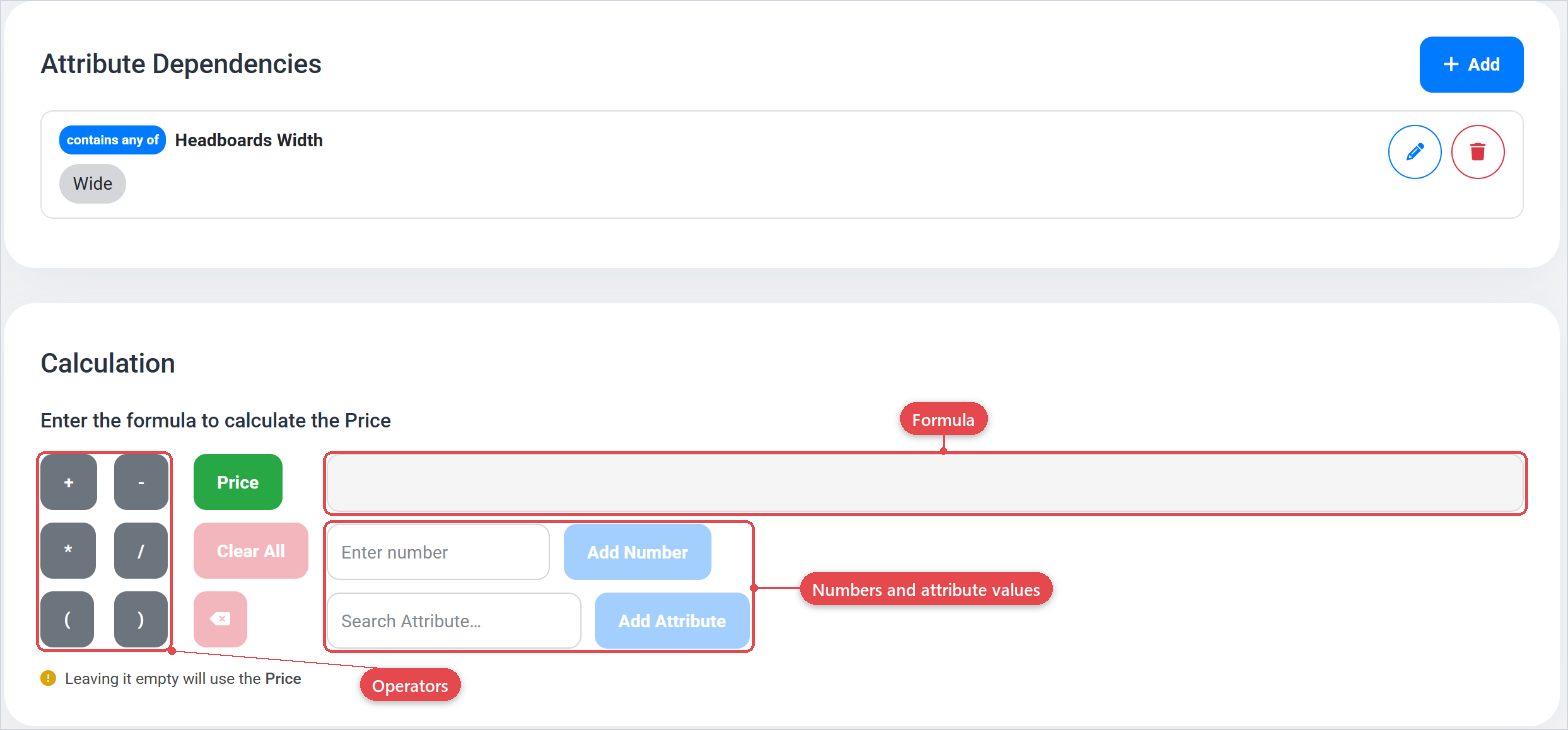
Keep formulas simple and readable. If the logic requires more than a few operations, consider a Script Engine price instead. It is easier to test and document a script than a long chip formula.
Attribute value pricing adjustments
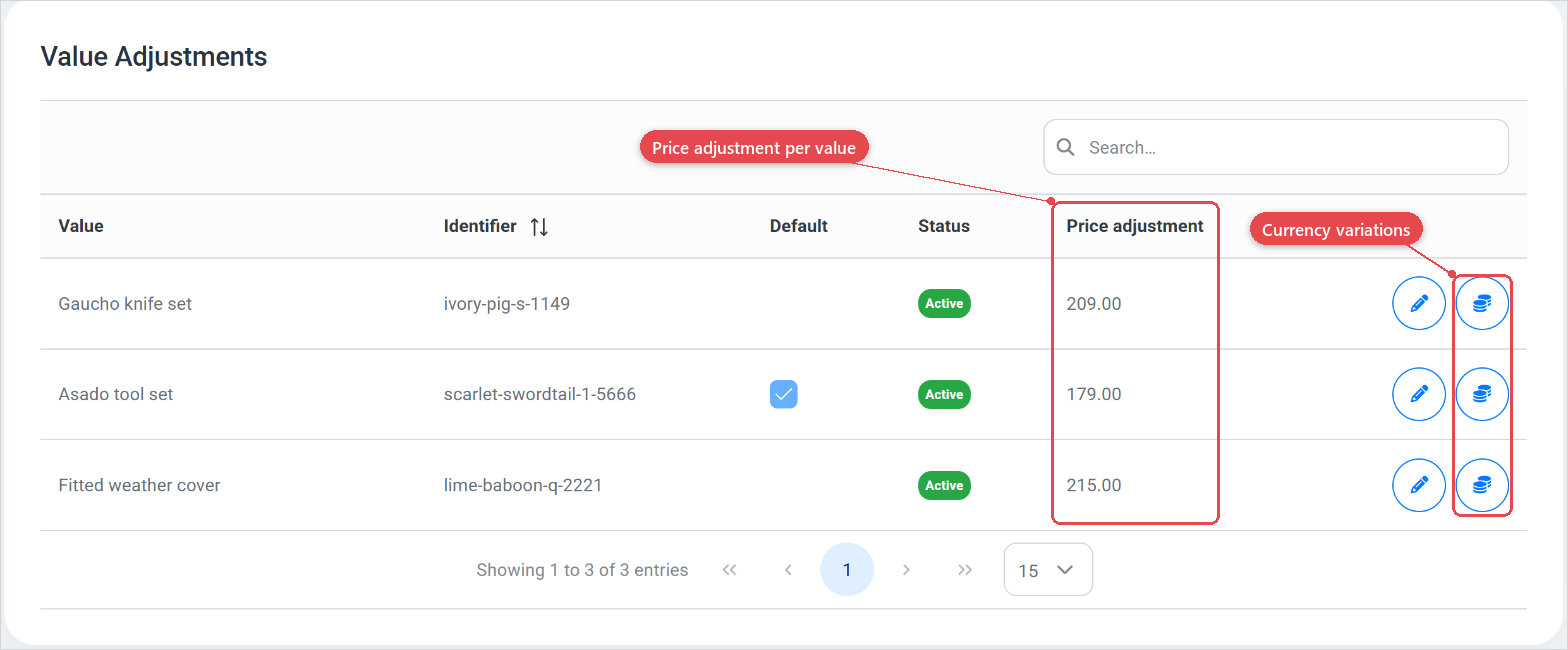
When the type is Attribute Value Pricing and an attribute is selected, a Value Adjustments table appears after saving. Each row is one value from the chosen attribute. Edit the Price adjustment column to set how much that value adds to or subtracts from the base price. You can also add, per-adjustment, Currency Variations for multi-currency stores.
Script Engine pricing
When the type is Script Engine, a Script Engine selector appears. Choose the script that should calculate the price. The script has access to the current configuration state and must return a numeric amount.
Priority and multiple prices
A product can have several active price entries. At checkout or quote generation the configurator evaluates all active prices and picks the one with the highest Priority value first. Use priority to implement tiered pricing. For example, a volume-discount price at priority 100 that overrides a base price at priority 0.
Always set an Active base price at a low priority (such as 0) as a fallback. This ensures every configuration has a valid price even if a more specific price rule does not match.
Use clear, sequential priority numbers (0, 10, 20, ...) rather than 1, 2, 3. Gaps make it easy to insert new price tiers later without renumbering everything.