Parts
Parts are the individual line items in a Bill of Materials (BOM). Each part represents something that is consumed or produced when a configuration is ordered — a raw material, a hardware piece, or any other item your fulfilment process needs to know about.
Before you start
Before creating parts, make sure you have at least one Unit of Measure (UOM) set up (Units of measure (UOM)). Every part requires a UOM. If you plan to add currency-specific pricing, also set up the relevant currencies (Currency).
How parts fit together
A part can optionally be scoped to a catalog, a product category, or a specific product. That scope determines when the part appears in a BOM output. Parts can have components linked to them (Components), and attribute dependencies can drive a dynamic quantity calculation.
Think of it like a webshop product variant: the part is the physical item, the scope narrows which products trigger it, and components are the sub-items grouped under it.
Create a part
- Go to Bill of Materials / Parts.
- Click Create.
- Fill in the General section:
| Field | What it does |
|---|---|
| Name | Translatable display name. Use the locale switcher to add translations. |
| Identifier | Unique machine-readable key (letters, digits, -, _, .; no spaces). Auto-validated for uniqueness. |
| SKU | Optional stock-keeping unit code from your ERP or WMS. |
| Status | Active makes the part available; Inactive hides it from BOM output. |
| Quantity | Default quantity of this part per configuration. Required; minimum 0. |
| UOM | The unit of measure (for example, pieces or meters). Required. |
| Price per Unit | Optional base price in the team's default currency. |
| Description | Optional translatable description. |
| Thumbnail | Optional image uploaded after you save. |
- Click Save to create the part.
Edit a part
Open the part and use the sidebar navigation to move between sections. Sections available on edit that are not present on create:
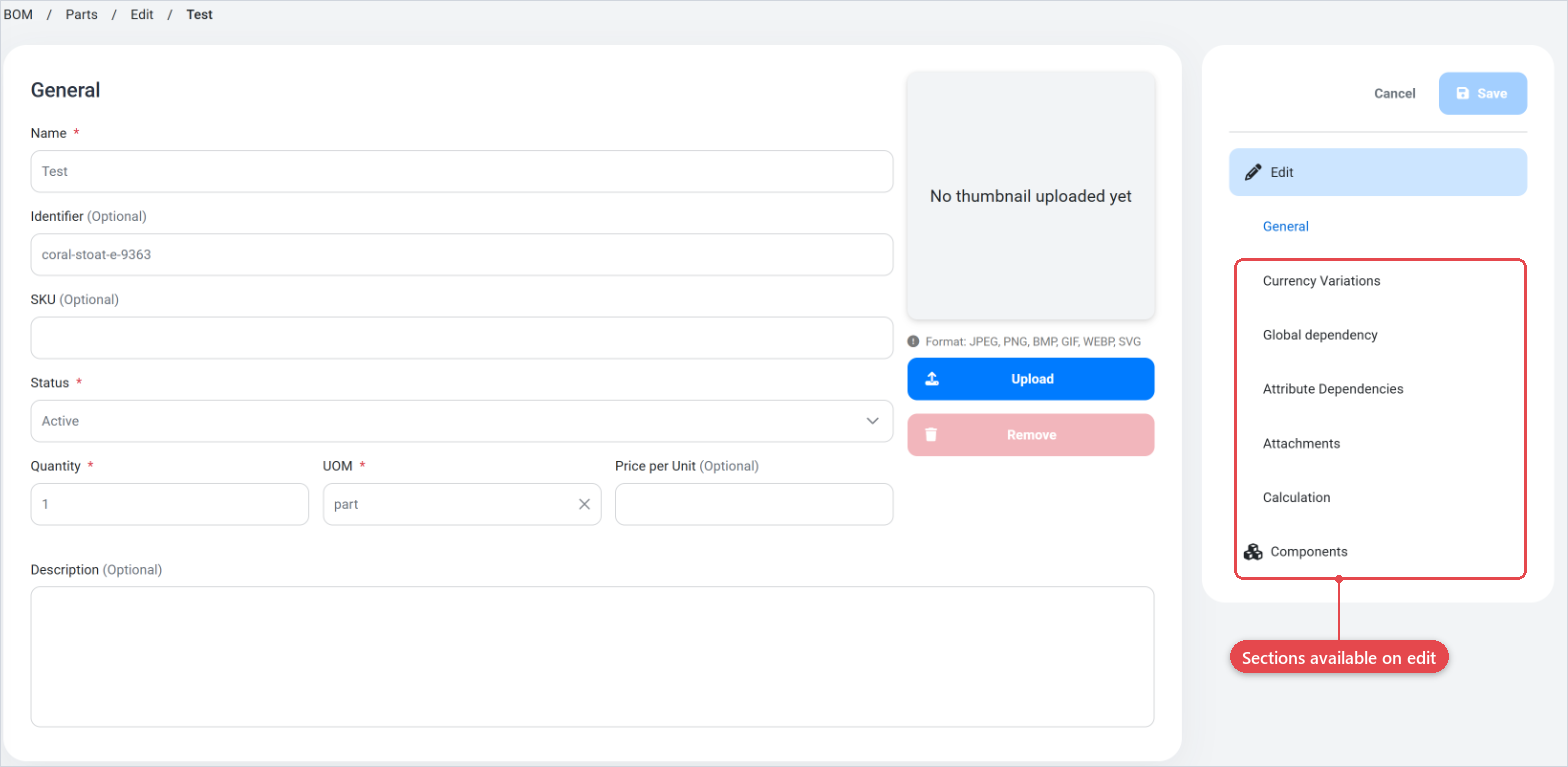
Currency Variations
Add prices in additional currencies. In the footer row, choose a Currency and enter a Price, then click Add. To update an existing price, click the edit icon on that row.
Global dependency
Restrict this part to a specific scope:
| Field | What it does |
|---|---|
| Scope | Choose Catalog, Product Category, or Product to narrow when this part applies. Leave blank to apply globally. |
| (scope selector) | Appears once a scope is chosen. Select the specific catalog, category, or product. |
| Country | Optionally restrict to a country (Countries). |
Attribute dependencies
Link numeric attributes from the product to this part. These attributes can then be referenced in the Calculation formula.
Attachments
Upload documents (datasheets, specifications) that belong to this part. Click Add new Document to open the upload form.
Calculation
Build a formula that calculates the part's quantity dynamically instead of using the fixed Quantity value.
- Use the operator buttons (
+,-,*,/, parentheses) to compose the formula. - Click Quantity to insert the part's own fixed quantity as a token.
- Click Add Number to insert a numeric literal.
- Select an attribute and click Add Attribute to insert an attribute value.
If you leave the formula blank, the system uses the Quantity field value.
Components
The Components section shows two tabs:
- Assigned Components — components currently linked to this part. You can edit the quantity (the amount of this component used per part) or unlink a component.
- Remaining Components — all components not yet linked. Select one to link it.
Bulk add
To create several parts at once:
- From the Parts list, click Bulk Add.
- Enter a Name and Identifier for each row.
- Set the Quantity and UOM for each row.
- Click Save.
Parts created this way get the settings you enter on that screen. Open each part individually afterwards to complete optional fields.
Bulk edit
To update multiple parts at the same time:
- Select the parts you want to edit using the checkboxes in the list.
- Click Edit in the action bar that appears at the top of the table.
- Adjust Name, Identifier, SKU, and Status for each row.
- Click Save.
Plan your identifier scheme before you start. Identifiers cannot contain spaces, and each one must be unique across all parts. A consistent pattern — such as MAT-001, MAT-002 — makes rules and integrations easier to maintain. Set up all your UOMs and currencies first so you can select them during part creation without switching screens.