Outputs (documents)
The Outputs tab controls two things: how the product's Bill of Materials (BOM) parts are produced when a configuration is saved, and which PDF templates can be downloaded from a finished configuration.
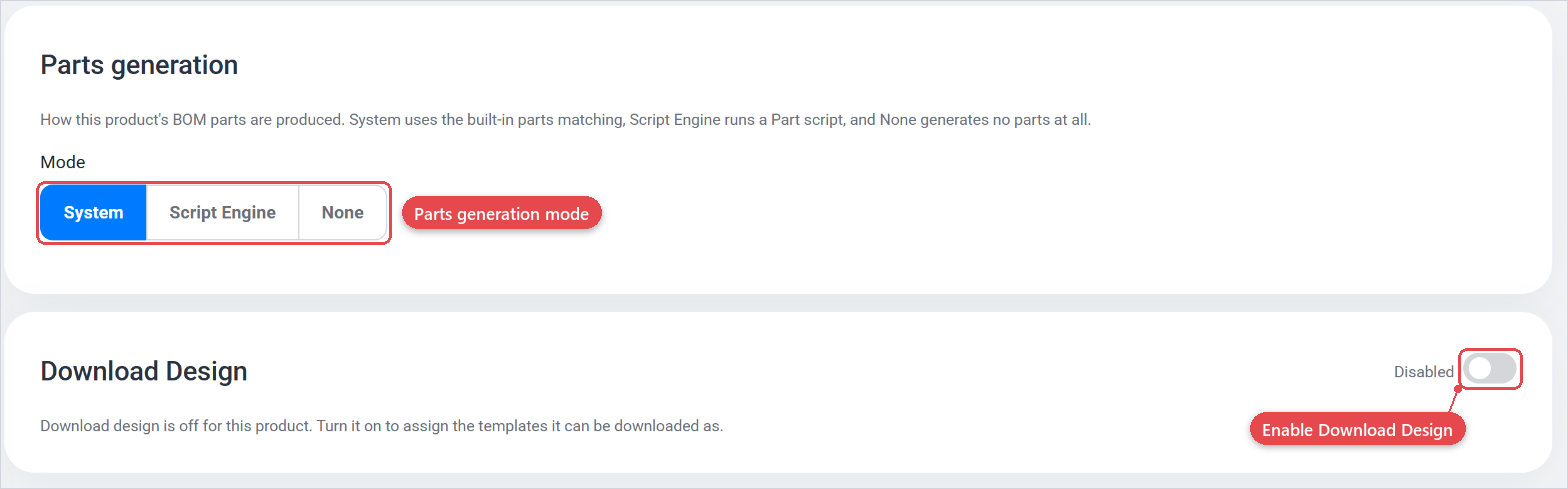
Parts generation
The Parts generation section determines how BOM parts are created for this product. Choose one of three modes:
| Mode | What it does |
|---|---|
| System | Uses Expivi's built-in parts-matching logic to generate parts automatically from the configuration. This is the default. |
| Script Engine | Runs a custom Part script to generate parts. Select the script from the dropdown that appears when this mode is active. Use this when the standard logic does not fit your product's BOM structure. |
| None | No parts are generated for this product. Use this for display-only products or products whose parts are managed entirely in a connected ERP. |
The mode is saved immediately when you change it. If you choose Script Engine you must also select a script before the mode is applied.
Download Design
The Download Design section controls whether end users can download a PDF summary of their configuration. Toggle it on to enable the feature for this product.
Once enabled, a table appears where you assign the templates that can be generated. Each row in the table is one template assignment:
| Column | What it does |
|---|---|
| Active | A checkbox that enables or disables this specific assignment. Only active rows are offered to end users. |
| Template | The template to use. Templates are set up in the templates section. Templates |
| Locales | Restrict this assignment to specific locales. Leave empty to make it available for all locales. |
| Countries | Restrict this assignment to specific countries. Leave empty for all countries. |
| Filename Pattern | A custom pattern for the generated PDF filename. Available variables: {productSlug} and {configurationId}. Leave empty to use the default pattern. |
To add a new template assignment, click Add at the bottom-right of the table. A new row appears in edit mode: select the template, optionally set locale and country filters, optionally set a filename pattern, then click the checkmark to save.
To edit an existing assignment, click the pencil icon on the row. To remove one, click the trash icon.
Use locale and country filters on template assignments when you have region-specific legal or language requirements. For example, a German-language order confirmation should only be generated for German-speaking locales, not for all users.
Keep the Active checkbox unchecked for templates that are still being designed. This lets you add the assignment early, so it is ready when the template is finished, without exposing an incomplete PDF to end users.
Templates must be created in the template management section before they can be assigned here. Templates Use the Manage templates link at the bottom-left of the table to open template management in a new tab.