Templates
Templates let you design structured content, such as email bodies, offer submission confirmations, and print-ready product documents, that Expivi uses automatically at the right moment in a customer's journey. Each template has a type that controls where it is used, and a status that controls whether it is active.
Create a template
- Go to Site › Templates.
- Click Create.
- Fill in the General form (see fields below) and click Save.
After you save, the template opens in edit mode. From there you can open the full-screen editor to build the template content.
General fields
| Field | What it does |
|---|---|
| Name | Display name shown in the template list (required, max 100 characters). |
| Identifier | A unique machine-readable key for the template (max 48 characters; letters, digits, hyphens, underscores and dots only; no spaces). Must be unique across all templates. |
| Status | Sets whether the template is available for use. See Statuses below. |
| Type | Determines where and how the template is used. See Template types below. The type cannot be changed after the template is created. |
| Description | Optional free-text note (max 255 characters). Visible in the list row detail. |
Choose the Type carefully before saving. Because you cannot change it later, selecting the wrong type means you need to delete the record and start over.
Statuses
| Status | When to use |
|---|---|
| Draft | You are still building the template. Expivi will not use it for sending or generating output. |
| Ready | The template is finished and reviewed, but not yet activated. Useful for staging templates before going live. |
| Active | The template is live and Expivi uses it when the associated action triggers. |
| Expired | The template is retired and no longer used. Keeps the record for reference without deleting it. |
The list page colour-codes the status: Active appears in green, everything else in amber.
Template types
| Type | Use case |
|---|---|
| Email Invoice | An invoice email sent to a customer after a purchase or quotation. |
| Offer Submission Email | A confirmation email sent when a customer submits a product-configuration offer (Offer configurations). |
| Product Download Design | A printable or downloadable document (for example, a PDF) generated from a customer's product configuration. Supports page breaks and print-ready file links. |
Editing and preview
After saving a template you land on its edit page, which shows the General section and a Template section. The Template section displays a thumbnail of the current template content (generated after the last save) or a placeholder when no content has been added yet.
Click Open Full-Screen Editor to open the template editor (Template editor) and build or modify the layout and blocks.
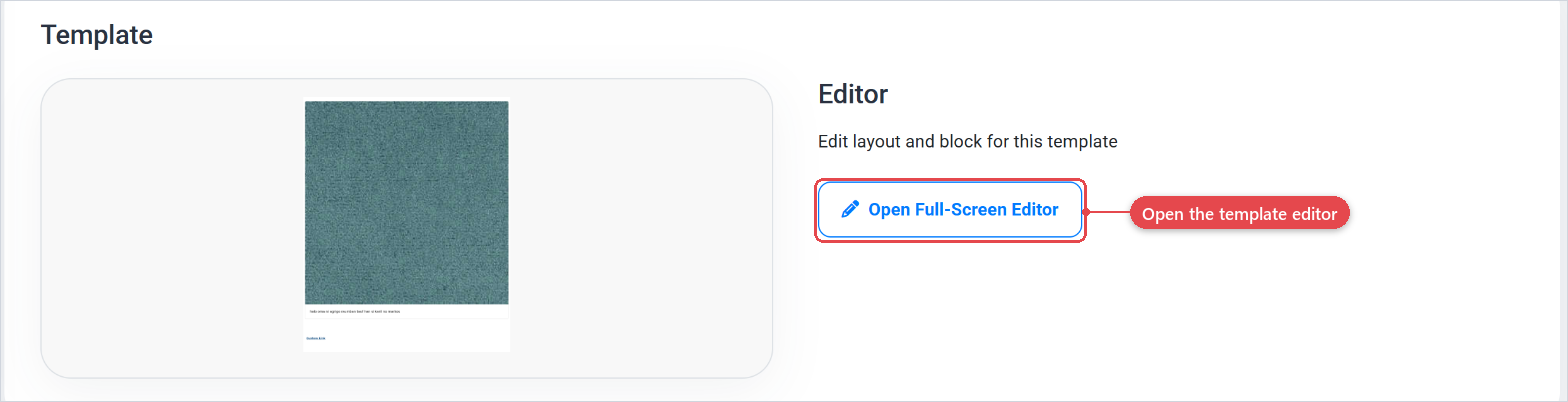
Once the template has content, the Preview button appears in the sidebar. Clicking it opens a rendered preview of the template in a separate view, so you can check how it will look before activating it.