Offer configurations
An offer configuration connects a customer-facing form to a specific scope in your catalog. A single product offer, a category, or an entire catalog. When a customer opens a product that falls within that scope in the storefront, the linked form is presented so they can submit a request or personalisation.
When to use
Create one offer configuration per scope where you want customers to be able to submit a form. For example, you might create one configuration per product offer that has a custom request flow, or a single configuration that covers a whole catalog.
Create an offer configuration
- Open Site in the main navigation and select Offer Configurations.
- Click Create in the top-right corner.
- Fill in the General fields (see table below).
- Click Save.
General fields
| Field | What it does |
|---|---|
| Name | A clear and descriptivbe name for this configuration. Required. |
| Identifier | A unique, URL-safe code using only letters, digits, hyphens, underscores, and dots. Optional; used to reference this configuration externally. |
| Status | Active makes the configuration live. Inactive disables it without deleting it. |
| Description | Free-text notes for your team. Not shown to customers. |
| Scope | Determines which products this configuration applies to. Choose Product, Category, or Catalog, then pick the specific item from the selector. Only one scope entity can be selected per configuration. |
| Form | The form customers will fill in when they reach a scoped product. Only active forms appear in the list. Form builder |
Set Status to Inactive while you are building and testing your form. Switch to Active only when the form and email settings are ready.
Additional settings (after first save)
After saving, open the configuration again to edit it. Two extra groups of fields become available in the edit view.
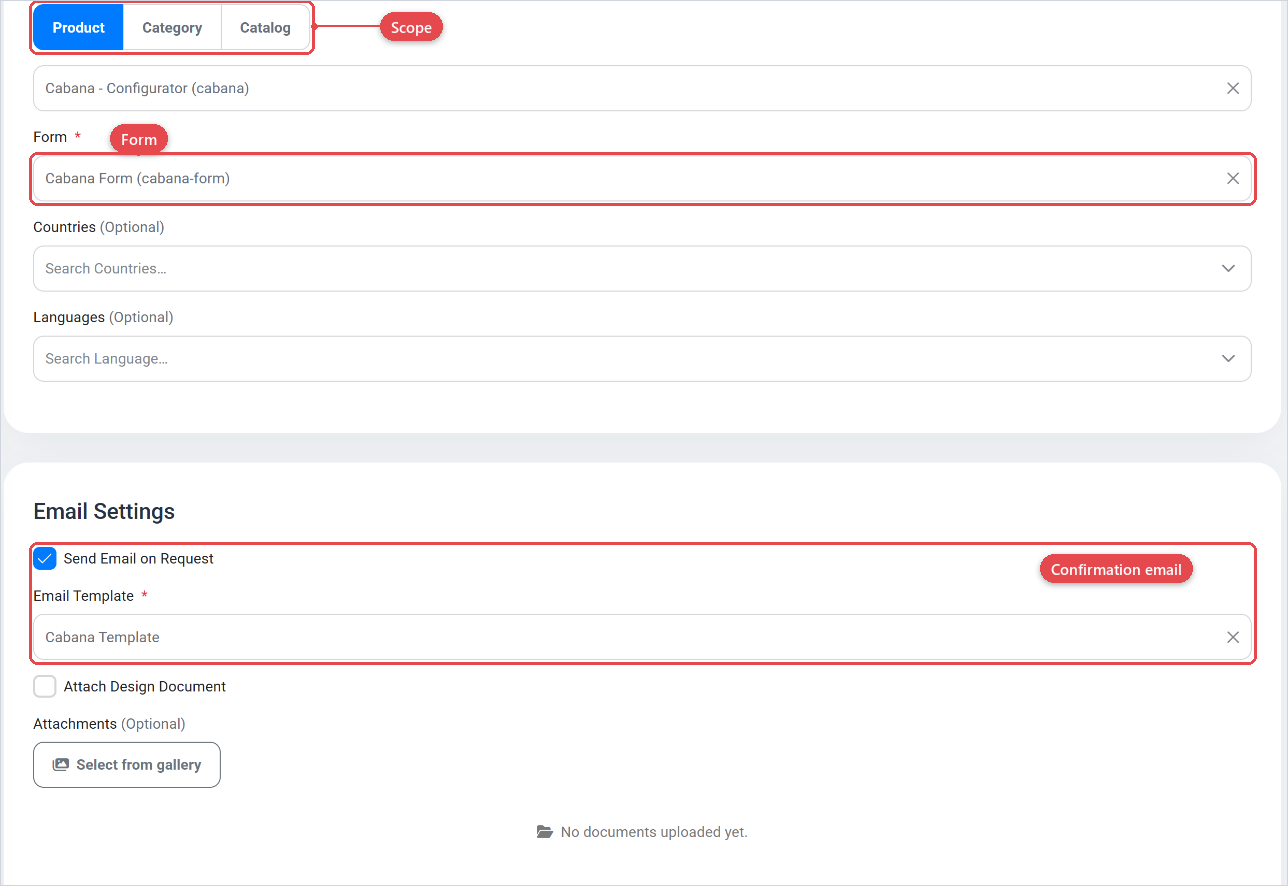
General — additional fields
| Field | What it does |
|---|---|
| Countries | Restrict this configuration to one or more countries. Leave empty to allow all countries. |
| Languages | Restrict this configuration to specific locales. Leave empty to apply to all locales. |
Email Settings
The email settings section controls what happens after a customer submits the form.
| Field | What it does |
|---|---|
| Send Email on Request | When checked, the system sends a confirmation email each time the form is submitted. |
| Email Template | The email template used for the confirmation. Visible only when Send Email on Request is checked. Only active templates are listed. Templates |
| Attach Design Document | When checked, a PDF design document is included as an attachment in the confirmation email. |
| Attachments | Additional files (such as PDFs or images) to include in every confirmation email. Use the upload area to add files and the list below it to remove them. |