Create an attribute
Creating a single attribute gives you access to the full attribute form, including all type-specific settings and the values panel, in one place. Use this flow when you need to set up a complete attribute from the start.
How to open
On the Catalog › Attributes page, click Create in the top-right toolbar.
General properties
The General tab is the first card you see. Fill in the following fields:
| Field | Required | Description |
|---|---|---|
| Name | Yes | Display name of the attribute shown to backoffice users and (depending on template configuration) to end customers. Supports multiple locales. |
| Identifier | — | Machine-readable key used to reference the attribute in rules, mapping, and the SDK. Auto-generated from the name if left blank. Must be unique across the catalogue. Only letters, digits, hyphens, underscores, and dots are allowed; no spaces. |
| Type | Yes | The attribute type (Static, Configurable, Bundle, Constrained). See below for a brief description of each, and the per-type pages for full details. |
| Value Type | Yes (except Constrained) | The kind of value the attribute holds. The available options depend on the selected Type. For Constrained attributes this field is inherited from the parent and cannot be changed. |
| Status | Yes | Active (visible and usable) or Inactive (hidden from products and configurations). Defaults to Active. |
| Thumbnail | No | An image that represents the attribute in the backoffice. Uploaded after the attribute is saved for the first time. |
| Value Input type | Yes (except Constrained) | Controls how the attribute is presented in the configurator interface. For value types that have selectable values (such as List), the input type is set to "single" selection by default. For free-form value types (such as Number) the input type is fixed to "static". For Constrained attributes this field is inherited. |
| Categories | No | Assigns the attribute to one or more attribute categories (Attribute categories). Categories are used to scope attribute assignment and for filtering. |
| Attribute Section | No | Groups the attribute under a section label in the attribute list. Sections are backoffice-only labels; they don't affect the product layout. |
| Description | No | Internal notes about the attribute. Supports multiple locales. |
Attribute types overview
| Type | When to use |
|---|---|
| Static | A fixed, non-selectable value. Use for data the configuration engine reads but the customer does not choose. |
| Configurable | A list of values the customer picks from. This is the most common choice. |
| Bundle | Each value links to another product offer. Use for add-ons, modular, and variant-product selection. |
| Constrained | Filters the values of a parent configurable attribute. Use when two products should share an attribute but one product only exposes a subset of values, or when multiple areas in a product use the same set of materials. |
See the per-type pages for the settings that appear below the General card:
Values
After you save the attribute, a Values panel appears below the form (or on the attribute edit page). Values are the individual options a customer can choose within this attribute. For example: "Red", "Blue", and "Green" for a colour attribute.
How values work
- Each value belongs to exactly one attribute.
- Values are ordered. You can reorder them by dragging the handle in the Position column, or by typing a position number directly.
- One value can be marked as Default, meaning it is pre-selected when the configurator loads.
- Values can be Active or Inactive. Inactive values are hidden from the configurator.
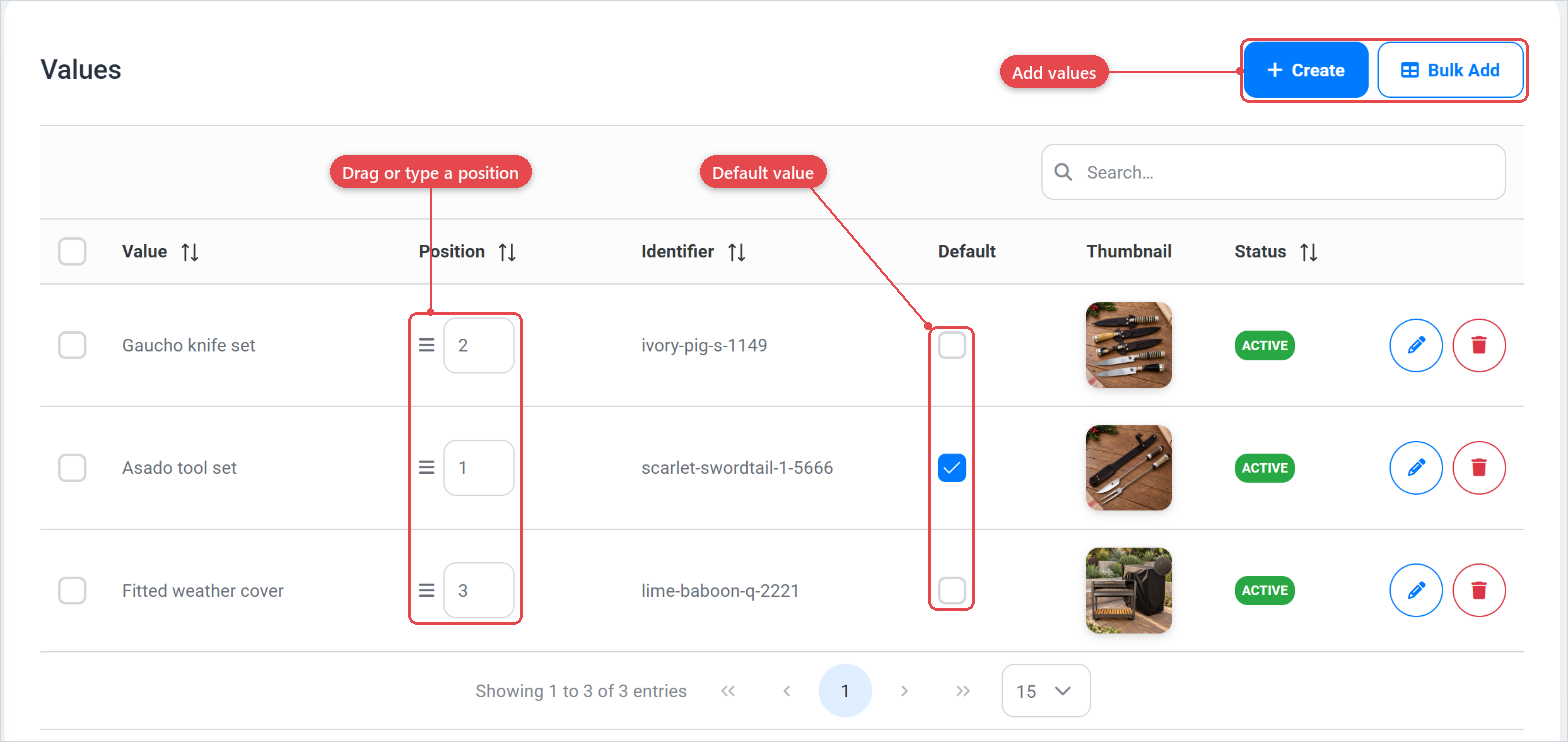
Adding values
Click Add (or, for Configurable attributes, also Bulk Add) to open the value creation form.
| Field | Description |
|---|---|
| Identifier | Machine-readable key for the value. Used in rules, mapping, and BOM conditions. |
| Status | Active or Inactive. |
| Categories | Assigns the value to one or more attribute value categories (Attribute value categories). |
| Description | Internal notes about the value. |
| Thumbnail | An image shown in the backoffice list. |
The fields in the Value section depend on the attribute type and value type:
| Attribute / Value type | Value fields |
|---|---|
| Static — String | A static translatable text string. |
| Static — Number | A static numeric value. |
| Configurable — List | A translatable option name and a checkbox to set the value to Default |
| Configurable — Number | Number fields (managed via the attribute's number settings). |
| Configurable — Boolean | A translatable option name and a checkbox to set the value to Default |
| Bundle — Product | A product selector (choose the linked product offer). |
Ordering values
Values are shown in Position order in the configurator. Drag rows in the table to reorder them, or type a number in the Position field and click away to move the value to that position.
Constrained attributes and values
A Constrained attribute does not have its own values. Its values are inherited from the parent attribute and filtered by the Parent Attribute Value Categories setting. If no categories are configured, all parent values are available. See Constrained attributes.
Give every value a clear identifier before saving. Identifiers cannot easily be changed later once rules, mapping, or BOM conditions reference them.
Add a thumbnail to each value whenever the customer will be choosing between visual options such as colours or materials. The template can use the thumbnail to render a swatch or preview image (Templates).