Configurable attributes
A configurable attribute presents the customer with a set of values to choose from. It is the most common attribute type and covers the majority of product options you would find in a standard webshop. Colour pickers, size selectors, material choices, and yes/no toggles.
When to use
- Any time the customer must make a choice between two or more discrete options.
- When you need a numeric input with a defined range (for example, a quantity or a custom length).
- When you need a simple yes/no toggle (a boolean).
- When you need a free-text field with a predefined value shown as a label (a string).
Value types
Choose one Value Type when you create the attribute. The type determines what each value stores and what type-specific settings are available.
| Value Type | What it holds | Typical use |
|---|---|---|
| List | A translatable value | Colours, materials, finishes, standard sizes |
| Number | A number, with range and step settings | Custom dimensions, quantities |
| Boolean | A yes/no toggle | Optional add-ons |
| String | A free-form text input per value | Custom text fields, names, labels |
Type-specific settings
Depending on the value type you choose, an additional settings card appears below the General card.
List
Area apears where you can add multiple values. After creating values you can change the order by dragging the value or changing the number. All further configuration lives in the individual values (label, default, thumbnail, categories).
You can add these values either one by one or create them using Bulk add. This lets you create multiple values in one go saving you lots of time.
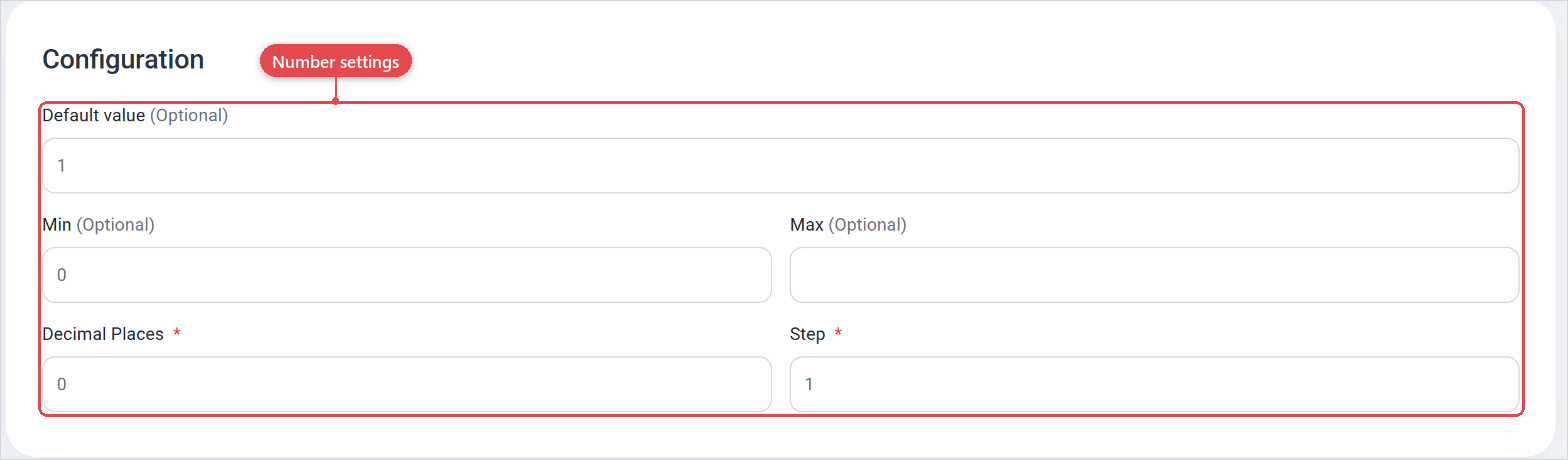
Number
| Setting | Description |
|---|---|
| Default value | The number pre-selected when the configurator loads. |
| Min | The lowest number a customer can enter or select. |
| Max | The highest number a customer can enter or select. |
| Decimal Places | How many decimal places the value allows. |
| Step | The increment between allowed values (minimum 1). |
String (configurable)
| Setting | Description |
|---|---|
| Default value | The text pre-filled in the input when the configurator loads. Supports multiple locales. |
| Max characters | The maximum number of characters the customer can enter. |
Boolean
Area apears where you can add two values. After creating values you can change the order by dragging the value or changing the number. All further configuration lives in the individual values (label, default, categories).
Assign values to attribute value categories (Attribute value categories) so that constrained attributes can filter to a subset of these values for a specific product without duplicating the full attribute.
When you have a large number of List values (for example, 50 RAL colours), use Bulk Add on the values panel to create them quickly. You can then assign thumbnails and materials in bulk afterwards.
For a Number attribute, always set Min and Max to avoid unexpected values reaching downstream systems. Set Step to match your production tolerance (for example, 10 mm increments for a panel width).
Where configurable attributes are used
Configurable attributes feed into almost every part of Expivi:
- Rules read the selected value to show/hide other attributes or update prices (Rules in v2).
- 3D visualization uses the selected value to drive material swaps and model variants (3D visualization attributes).
- Material mapping maps each value to a 3D material (Material mapping).
- BOM conditions reference the selected value to include or exclude parts (Parts).
- Constrained attributes inherit their value list from a configurable parent and filter it by category (Constrained attributes).