Decision table
The decision table is a rule type that lets you manage many condition-action combinations in a compact spreadsheet layout. Each row in the table is an independent ruleset: if its conditions are all true, its actions all fire.
Use a decision table when you have more than a handful of combinations to cover, or when you want to compare rulesets side by side for completeness.
General settings
When you create or edit a rule you fill in the following fields in the General section:
| Field | What it does |
|---|---|
| Name | A human-readable label shown in lists and breadcrumbs. Up to 100 characters. |
| Identifier | A unique machine key (letters, digits, hyphens, underscores and dots; no spaces). Auto-generated from the name but editable. Required after creation. |
| Description | Optional free text explaining the rule's purpose. Up to 255 characters. |
| Status | Active or Inactive. Inactive rules are saved but do not evaluate at runtime. (Out of sync is set by the system and cannot be selected manually.) |
| Type | Choose Decision Table here. Cannot be changed after creation. |
| Scope | What this rule applies to. Select one of: Product, Catalog, Product Category, or Configuration. Then pick the specific entity in the field below the selector. |
How the table works
The decision table has two groups of columns:
- Conditions columns — each column represents one condition type. The column header shows which expression type the column uses.
- Actions columns — each column represents one action type.
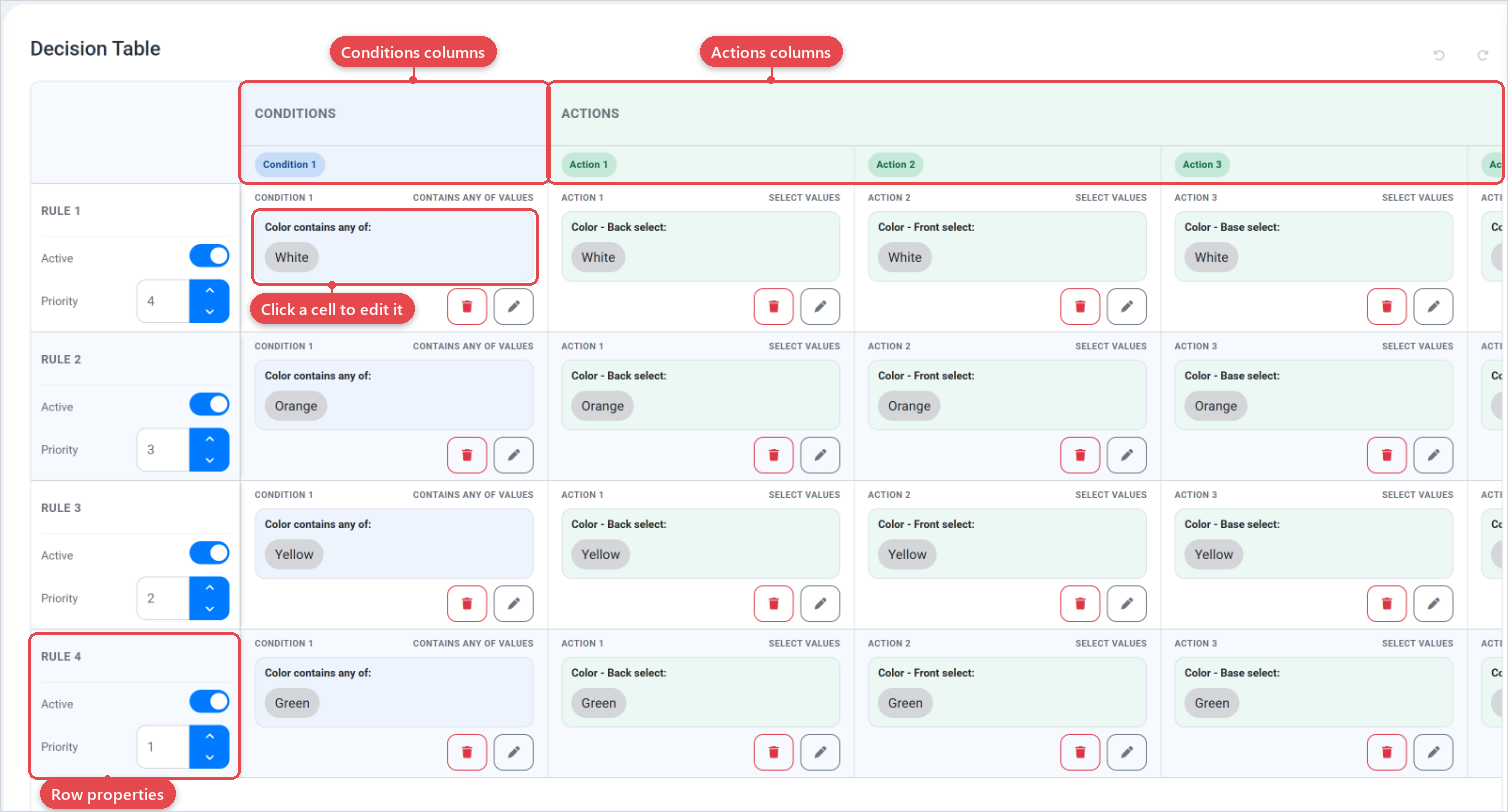
Each row is a ruleset. Read a row from left to right: if all non-empty condition cells on that row are satisfied, all non-empty action cells on that row fire.
A cell left blank is ignored for that row, so you can have a condition column that only applies in some rows.
Row properties
Every row has two per-row properties in the left-hand row header:
| Property | What it does |
|---|---|
| Active | When switched off, that row is disabled and will never fire even if its conditions match. The toggle is available only after at least one condition and one action cell is filled. |
| Priority | A number from 1 to 999. Lower numbers fire first when multiple rows match. |
Groups
Rows can be organized into named groups. Groups collapse and expand so you can focus on one part of a large table at a time. To move a row into a group, click the group icon in the row header. To create a new group, use the Group button below the table.
Adding and removing columns
Use the + button in the Conditions or Actions header banner to add a new column of that type. Each new column opens the expression sidebar so you can choose the expression type for that column. You can also create new columns directly in groups by clicking the + Add Rule on the group header itself.
To remove a column, open its header menu and choose Delete column.
Editing cells
Click a cell to open the expression sidebar on the right. Set the value or target for that cell, then click Apply. A cell that has been configured shows a summary card. A blank cell shows nothing and is skipped at evaluation time.
You can also select a range of cells by clicking and dragging, or shift-clicking, then drag the fill handle at the bottom-right corner of the selection to copy a configured cell across a range (similar to a spreadsheet fill-down).
Undo and redo
The decision table supports undo and redo for all structural changes (adding rows, deleting columns, filling cells, moving groups). Use the Undo and Redo buttons in the Decision Table section header.