Media gallery
Media Gallery vs Textures — Both of these tabs deal with 2D files. The key distinction: the Media Gallery stores all media used in slideshows, 2d visualization and thumbnails where the Textures tab stores all textures/images used in the materials for 3D visualization.
Media tab
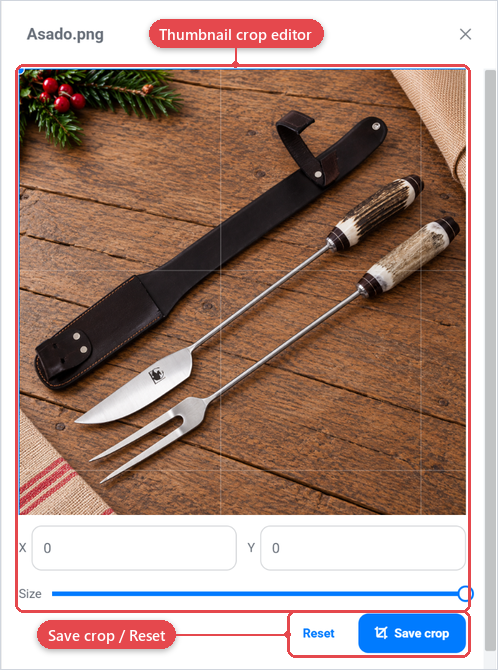
A thumbnail crop editor (for image assets) — adjust how the image is cropped for use as a thumbnail, then click Save crop or Reset to undo.
- Store: always shows "Media" on this tab, meaning the asset lives in the media store.
- Media type, Folder, Created, Updated, and a copyable URL.
- Used in: a list of the places in the backoffice where this asset is referenced, shown as type + name pairs. If the asset is not referenced anywhere, the panel says "Not currently in use."
- Tags: the tags applied to this asset, with a picker to add more or remove existing ones.
From the asset card you can also open a context menu with actions including Rename, Move (choose a destination folder in a dialog), and Delete.
Textures tab
The Textures tab shows all assets in the texture library. These are image files used by the 3D rendering engine as texture maps inside materials.
The Textures tab has the same search and sort controls as the Media tab, and can be organized using folders and subfolders. This way you can keep your storage more organised.
Best practices
- Apply tags to group assets by campaign, material type, or product line so they are easy to filter later.
- Check the Used in panel before deleting an asset to avoid breaking live configurations.