Add a download form to your product
A download form asks customers a few questions before they request a quote. Their answers are added to a PDF that they receive by email.
You need three things:
- A form with the questions.
- A template that defines the PDF.
- An offer configuration that connects the form and template to your product.
Step 1: Create the form
-
Go to Site › Form Builder and click + Create.
-
Enter a name and identifier, then click Save. The Editor section appears at the bottom of the page.
-
Click + Create Initial Version and confirm with Yes.
-
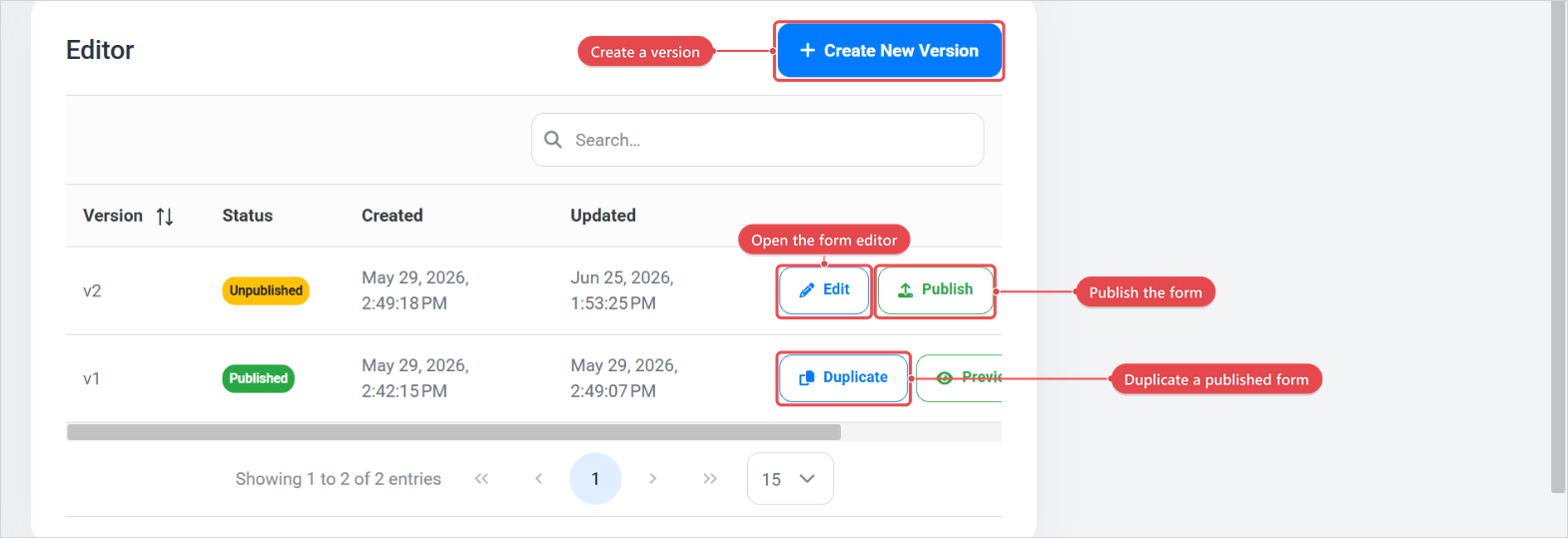
Click Edit next to the version to open the form editor.
-
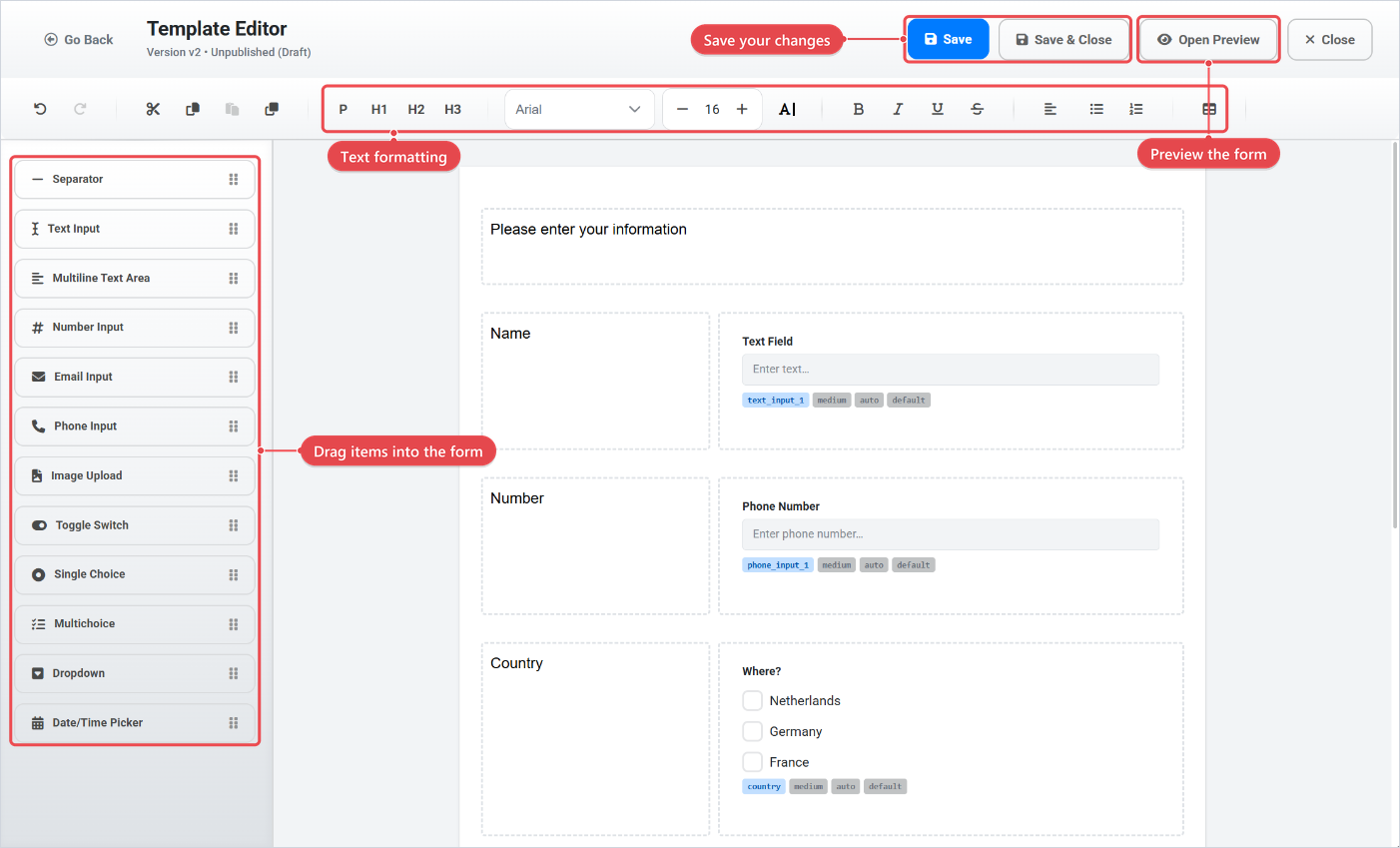
Drag items from the toolbar on the left into the form. Use the toolbar at the top to format text.
-
To change an item, click it and then click its gear icon. Use the handle next to the gear to drag it to another position, or the trash can icon to remove it.
-
Click Open Preview to check the form.
-
Click Save or Save & Close.
-
Back on the form page, click Publish.
You can't edit a published form. To change it, click Duplicate, edit the copy and publish it. Each form can have only one published version.
Step 2: Create the PDF template
-
Go to Site › Templates and click + Create.
-
Enter a name and identifier, then click Save.
-
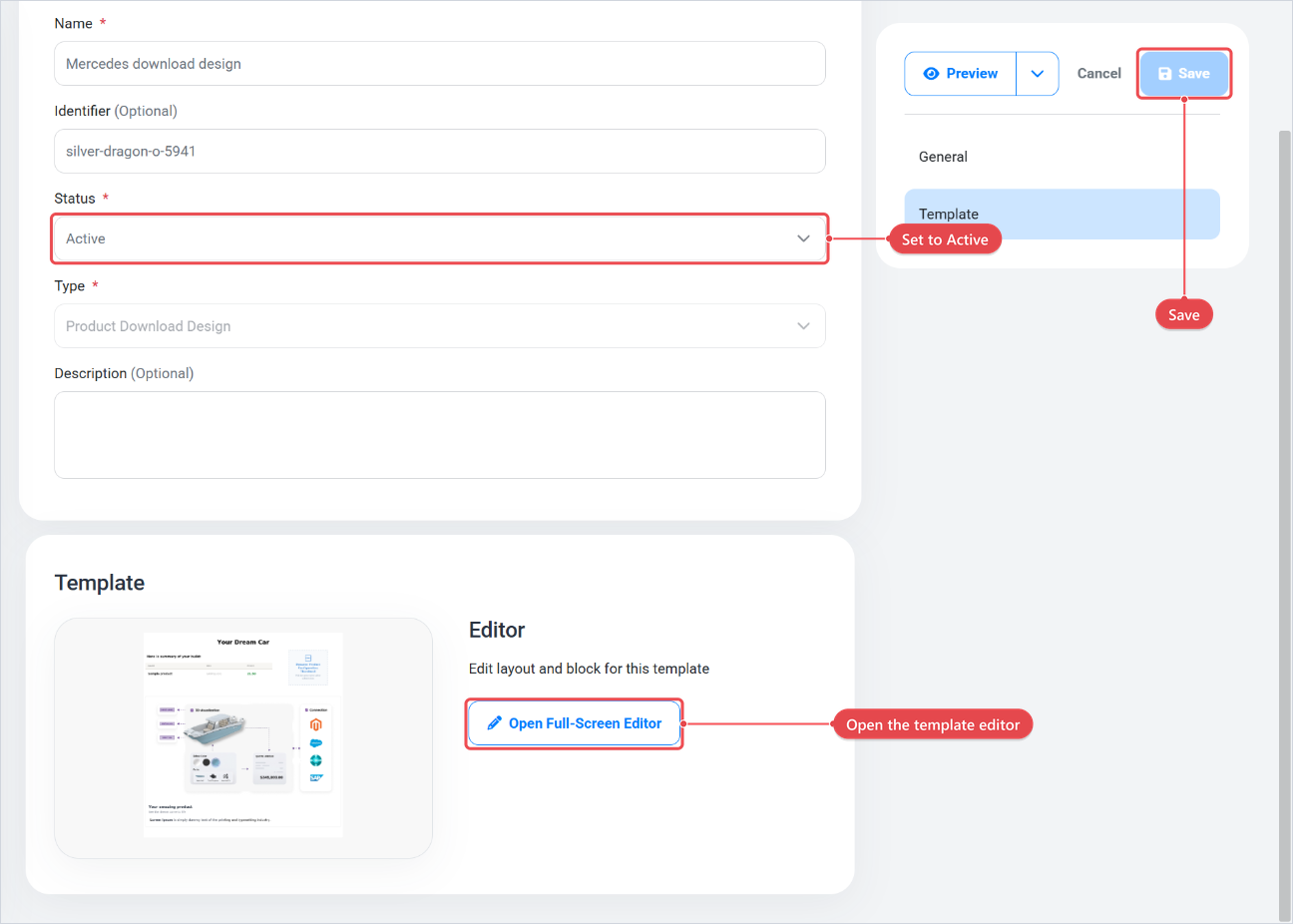
Scroll down and click Open Full-Screen Editor. The template editor works like the form editor.
-
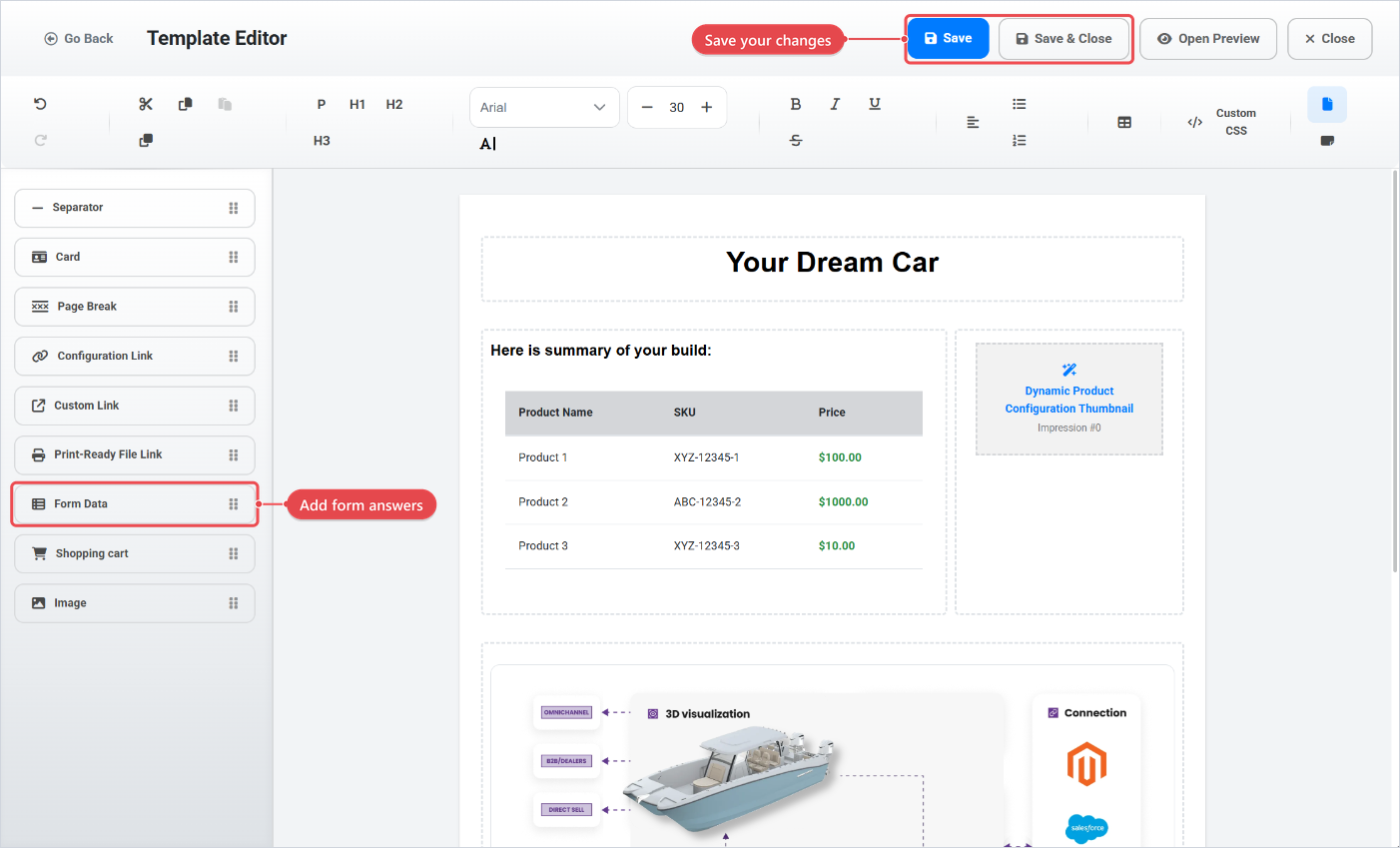
Drag a Form Data item into the template.
-
Edit the item and select your form. The available fields appear.
-
Select a field and click Apply. Repeat for each answer you want in the PDF.
-
Click Save or Save & Close.
-
Set the Status of the template to Active and save.
Step 3: Connect the form and template to the product
-
Go to Site › Offer Configurations and click + Create.
-
Enter a recognizable name and identifier.
-
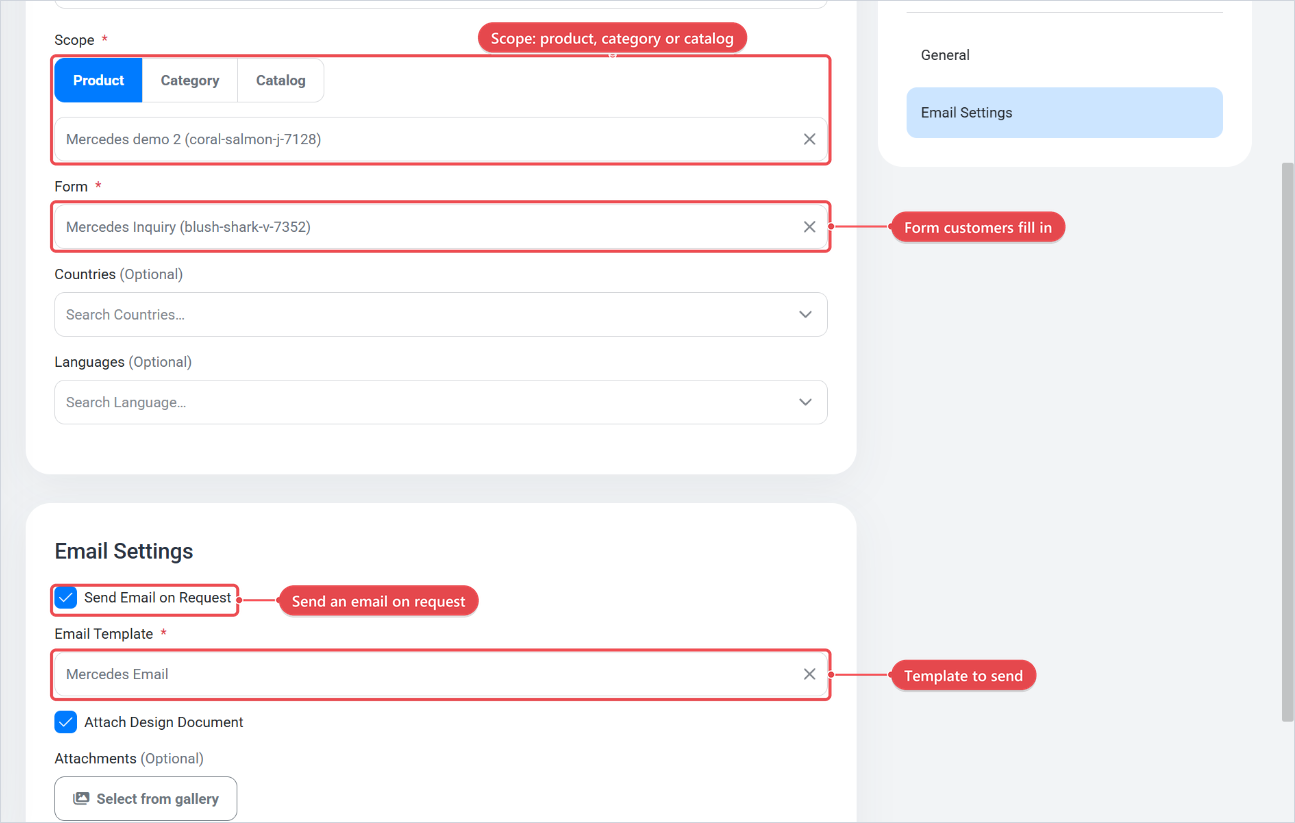
Under Scope, choose whether the offer applies to a Product, Category or Catalog, then select it.
-
Under Form, select the form from step 1.
-
Click Save.
-
Under Email Settings, select Send Email on Request and select the template from step 2.
-
Click Save.
Step 4: Test the form
- Open the configurator.
- Click Request Quote below the viewer. The questions from your form appear.
- Fill in the form and click Submit.
- Check that you receive the email.